

想用自己的录音替换视频里的台词,在 Audio to Video Lip Sync 上传原视频和已经录好的音频即可。FreeLipSync 会从原视频中匹配适合新语音的片段,因此几秒钟的素材也能生成更长、自然真实的口播视频。原视频本身较长时,也可以保留原有动作与表情,只替换讲话内容。
下面的实际案例将 5.06 秒原视频、39.42 秒音频与 39.44 秒成片放在一起,展示两者不必等长。
为什么要用上传音频替换视频台词?
一次拍摄,反复制作口播内容
创作者、教师或产品负责人可能每周都要发布新的口播。若每换一段文案就重新架设灯光、整理场景并拍摄,时间和成本会不断累积。保留一段动作、表情自然且通用的短视频,以后只需录制新的音频。课程开场、产品更新和定期公告都适合这种方式。画面基于真实拍摄的动作与表情,所以即使原素材很短,延长后的结果仍有真实感。
同一画面制作不同版本
同一个说明视频可能需要面向不同受众改写措辞,或制作不同语言的版本。先确认每一版的文案与语音,再将成品录音和同一段原视频配对,人物与画面风格便能保持一致。口型同步负责让画面配合已经准备好的音频;翻译本身仍需单独校对。
更新一段已有的长视频
如果原视频本来就较长,例如一段课程讲解,也可以上传对应的新录音,在保留原始动作和表情的同时替换讲话。这里不另配长素材演示。需要注意的是,新台词应与可见动作相符:人物指向图表或拿起物品时,音频内容也要能对应这些画面。若只修改成片中的一部分,先剪出该段、处理完成后再放回原剪辑。
选择可反复使用的原视频
你可以使用自己拥有或获准修改的现成素材,不必专门重新拍摄。下面的原视频只有 5.06 秒,提供了成片所沿用的人物动作和表情:
原视频不必与新音频等长,也不必刻意正对镜头、露出特别清晰的嘴部。 更重要的是人物动作和表情能否适用于多种台词。自然的姿态、小幅手势和比较通用的情绪,比只适合某一句话的表演更容易复用。这个视频输入流程不会重新生成身体动作和表情,而是沿用实拍内容并同步新讲话;Max 图片模型则会重新生成动作和表情,需要更长时间。发布修改后的素材前,也应确认视频和人物形象的使用许可。
准备替换音频
先完成并试听最终录音,检查措辞、发音和节奏。本案例上传的是一段 39.42 秒的英文音频;虽然画面素材只有约 5 秒,生成结果仍会跟随这段音频的长度。
39 秒替换音频
如果还没有录音,只有新脚本,可参考文字改写口播视频教程。如果目标是多语言版本,先审定翻译和对应录音;这个工具不会自动翻译音频内容。
上传视频和音频
- 打开 Audio to Video Lip Sync。
- 上传要保留动作与表情的原视频。
- 选择 Upload Audio,上传最终录音,并检查两个文件是否正确。
- 确认页面上的生成选项,开始生成。
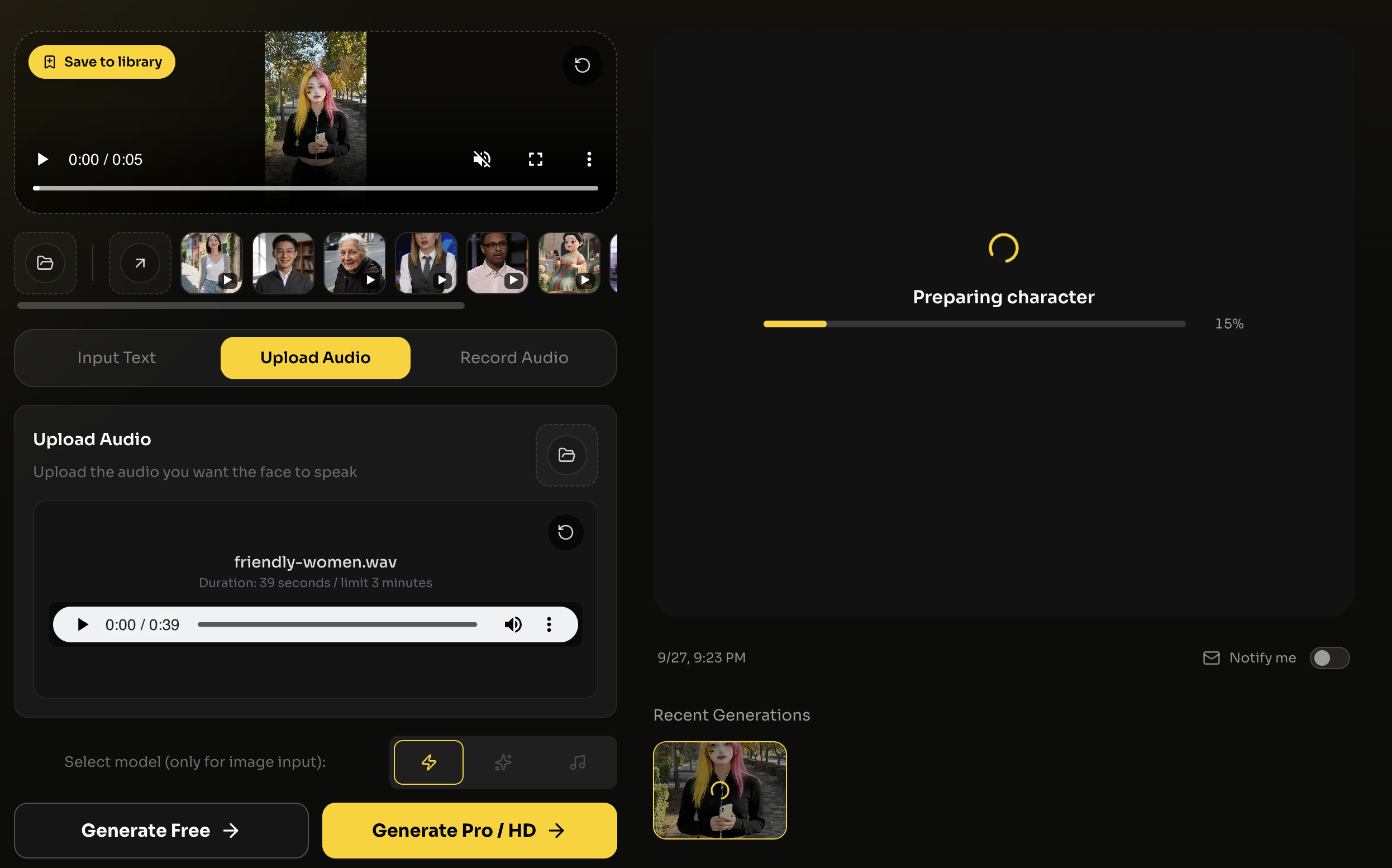
这张实际操作截图显示了约 5 秒的原视频和 39 秒的音频。截图拍摄于生成过程中,下方可以直接观看完成的成片。
对照两个输入查看结果
下面的成片长 39.44 秒,与上传音频几乎等长,约为原视频时长的八倍:
比较原视频、录音和生成结果:人物的动作与表情应保持原素材的自然感,新台词和口型则应跟随上传的音频。制作更长的口播时,重点选择表情与动作通用的原视频,而不是一味延长拍摄时间。
常见问题
上传音频可以比原视频长吗?
可以。本案例由 5.06 秒原视频、39.42 秒音频生成 39.44 秒的视频。系统会匹配原视频中适合音频的部分,两者不需要等长。
原视频已经很长,也能替换讲话吗?
可以。上传较长的原视频和对应的新录音,原有动作与表情会继续作为画面基础。如果只改其中一段,先剪出该段并在处理后放回成片。
什么样的短素材适合反复使用?
选择能适应不同台词的自然动作与表情。关键不是素材足够长,也不是人物必须正面、嘴部特别清楚;与特定话语紧密绑定的动作反而会限制复用。
与 Max 图片模型有什么区别?
视频输入会沿用拍摄时已有的动作与表情,再让口型配合新音频。Max 图片模型从图片重新生成动作与表情,因此需要更长时间。
最后更新:


