

To replace speech in an existing face video, upload the video and a finished voice recording to Audio to Video Lip Sync. FreeLipSync matches suitable parts of the filmed performance to the new audio, so a source recorded in just a few seconds can support a much longer talking video. You can also start with a longer video and replace its spoken audio while keeping the original performance.
The example below puts that duration difference side by side: a five-second source video, a 39-second uploaded recording, and a 39-second finished video.
Why replace video speech with uploaded audio?
Record once for recurring on-camera messages
A creator, founder, teacher, or presenter may need a new spoken update every week. Recording every version on camera means arranging the space, lighting, framing, and performance again, even when only the words have changed. Instead, keep one short clip of natural, reusable movement and record each new message as audio. The clip can be footage you already own or have permission to adapt. The spoken track can be much longer than the source; FreeLipSync selects suitable parts of the filmed performance to follow it. In the example here, roughly five seconds of footage supports a 39-second update.
This is useful for product announcements, regular course introductions, creator updates, and other messages delivered by the same person. The time saving comes from avoiding another camera session for every script. The visual result still starts from real filmed movement and expression, which helps a short source support a natural, realistic longer presentation.
Make several versions of the same message
When a launch announcement, lesson introduction, or customer explanation needs different wording, record the approved voice take for each version and reuse the same source performance. Keep the framing and person consistent while changing the speech. If the new version is in another language, prepare and review the translation and recording first; lip sync changes the visible speech, not the meaning of the words. The video dubbing guide covers that language-specific work.
Update speech in an existing longer video
Sometimes the source is already a full on-camera explanation. For example, an instructor may have a minute-long lesson whose spoken instructions need updating, or an archive owner may want a newly voiced edition of an older interview. Upload the longer source and a finished replacement track for the clip you want to update. The new mouth movement follows that track, while the source video remains the basis for the person's movement and expression.
For this route, the new words should still make sense with what the person visibly does. If they point to a chart or handle an object, prepare speech that fits those visual moments. When only one section of a larger edit needs replacement, work with that video section and a matching audio take, then place the finished section back into your edit. The tool does not automatically rewrite isolated sentences inside a finished film. With archival or stock footage, check permission to edit the footage and portray the person saying new words; permission to download or redistribute a film alone may not cover that use.
Choose a source video you can reuse
Start with a video you have permission to edit and use for a new spoken performance. It can be a clip you already own or suitable licensed footage; you do not have to shoot a new video. Its job is to supply the person's existing movement and expression. This example starts with a 5.06-second outdoor performance:
Source input: a short performance that supplies the result's underlying movement and expression.
The source video does not need to match the new audio's duration. FreeLipSync automatically selects suitable portions of the source to match the recording. Here, the supplied recording is nearly eight times as long as the source clip.
What matters more is whether the performance can plausibly accompany many different lines:
- Use natural, general movement. A relaxed speaking rhythm, ordinary gestures, and small changes of posture give the result a believable base.
- Keep expressions versatile. An expression that fits several possible sentences is easier to reuse than a reaction tied to one particular word or event.
- Avoid acting out the final script. The person can speak naturally in the source; they do not need to say or mime the replacement line.
When searching an existing footage library, compare candidate clips by those same criteria. A short interview answer, presenter introduction, or direct-to-camera explanation can work better than a longer scene full of actions that only fit its original words. Check the footage rights and permission to portray an identifiable person speaking new words before publishing an edited video.
You do not need an exaggerated, straight-on mouth close-up. This workflow can handle footage that is difficult for conventional lip-sync methods. A technically simple but natural performance can look more real in a longer result than a carefully staged clip with gestures that only make sense for one sentence.
Unlike the Max image model, this video-input workflow does not regenerate the person's body movement and expressions. It reuses the source performance while synchronizing the visible speech to the new audio. Max creates motion and expression anew and takes longer; here, the quality of the filmed performance directly shapes how real the output feels.
Prepare the replacement audio
Use the finished voice performance you want the video to follow. Confirm the words and delivery before uploading. This example uses a 39.42-second recording that introduces the tutorial and describes the workflow:
Replacement audio input
Audio input: the replacement recording, not the source video's original soundtrack.
Uploaded audio is the right route when the voice take is already final. If you only have a new script and no recording, use the text-to-video workflow instead. For a translated line, prepare and review the translation first; the video dubbing guide covers that extra step.
For a longer talking-head update, write and record the full message first. The recording gives the result its intended length even if the reusable source clip lasts only a few seconds. Listen through the entire take for the final wording and delivery before generating; the output follows the audio you supply. For an existing longer scene, decide whether you are replacing the whole clip's speech or just an edited segment, then prepare the corresponding audio take.
Upload the video and audio
- Open Audio to Video Lip Sync.
- Add the source face video as the visual input.
- Choose the audio input path and upload the finished replacement recording. Check that you selected the intended files before generating.
- Review the generation options shown in the tool and start the task.
This screenshot shows the actual example inputs selected in the tool: the five-second source at the top and the 39-second recording under Upload Audio. The image was taken while generation was in progress; the finished result is below.
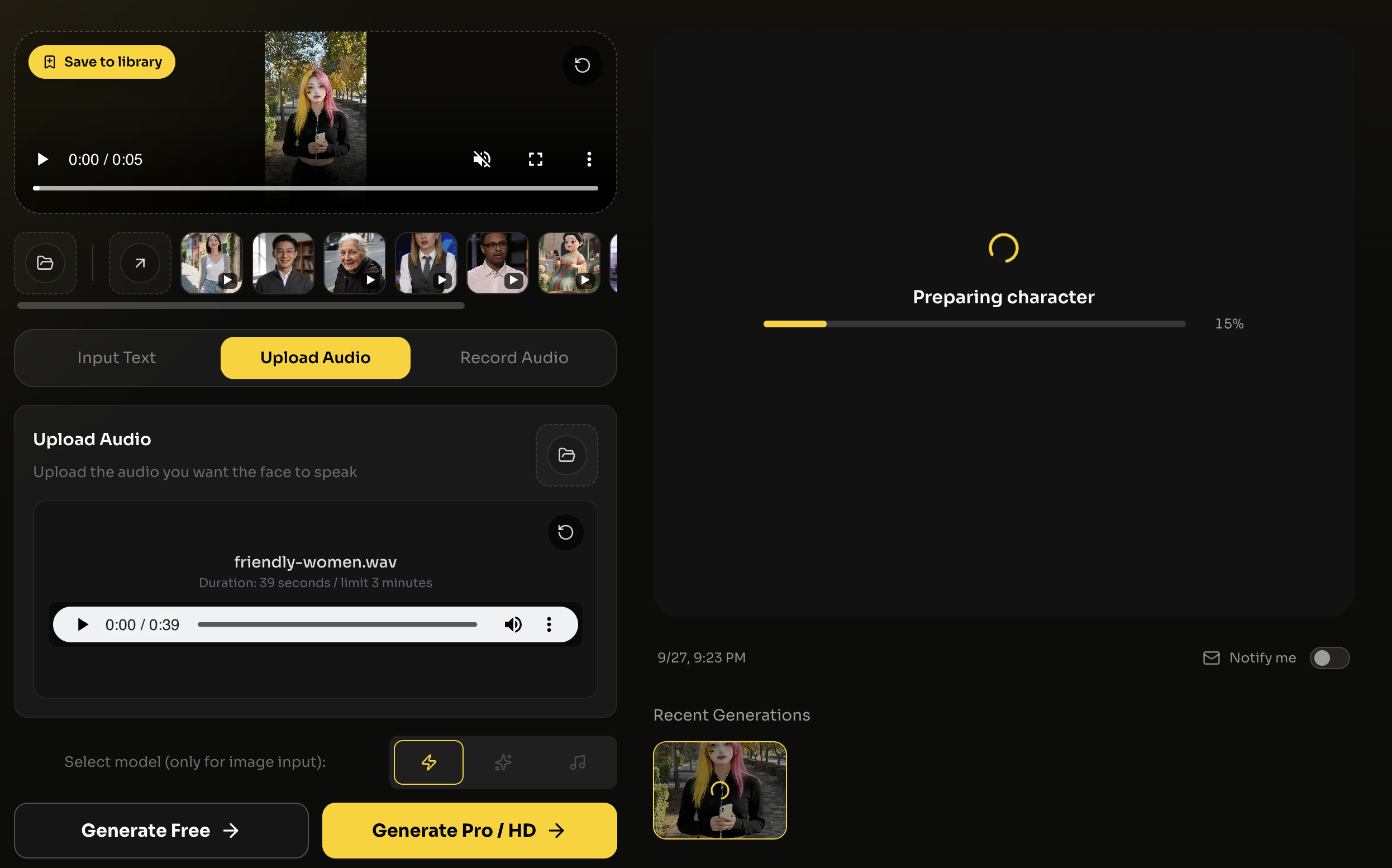
The tool uses the uploaded recording to set the new spoken performance. It does not translate words for you; a translated dub needs a prepared track or a reviewed translated script first.
Compare the result with both inputs
The finished result is 39.44 seconds, closely matching the uploaded audio and much longer than the five-second source:
Watch the 39-second result on its dedicated page
The spoken example introduces this tutorial and explains why a few seconds of filmed performance can support a much longer message. The audio was prepared separately, then uploaded with the source video; no new on-camera take was needed for this example.
Compare the result with the source and the uploaded recording. The body movement and expressions should still feel like the original person, while the spoken performance follows the new audio. For a longer output, pay particular attention to whether the source gestures and expressions still feel plausible throughout the full message. A short but versatile real performance is what gives that longer result its natural character.
Frequently asked questions
Can the uploaded audio be longer than the source video?
Yes. FreeLipSync matches the new audio to suitable parts of the source video. A short, reusable performance can produce a longer talking result; the two inputs do not need to have the same duration. The example above pairs a 5.06-second source with 39.42 seconds of audio and produces a 39.44-second result.
Can I replace the speech in an already long video?
Yes. Use the longer video as the source and provide the new recording. The original performance supplies the movement and expression while the new speech drives lip sync. If you only want to change a portion of a larger film, edit that portion as a separate clip and return it to the full edit afterward.
What makes one source clip useful for several videos?
Natural gestures and expressions that can fit many lines make a clip reusable. Its value is not primarily its length or a straight-on view of a perfectly clear mouth. This workflow can handle footage that conventional lip-sync methods often struggle with.
How is video input different from the Max image model?
This video-input workflow reuses the source performance and changes the speech synchronization; it does not regenerate the person's body movement and expressions. The Max image model creates motion and expression anew, so it takes longer.
Last updated:


