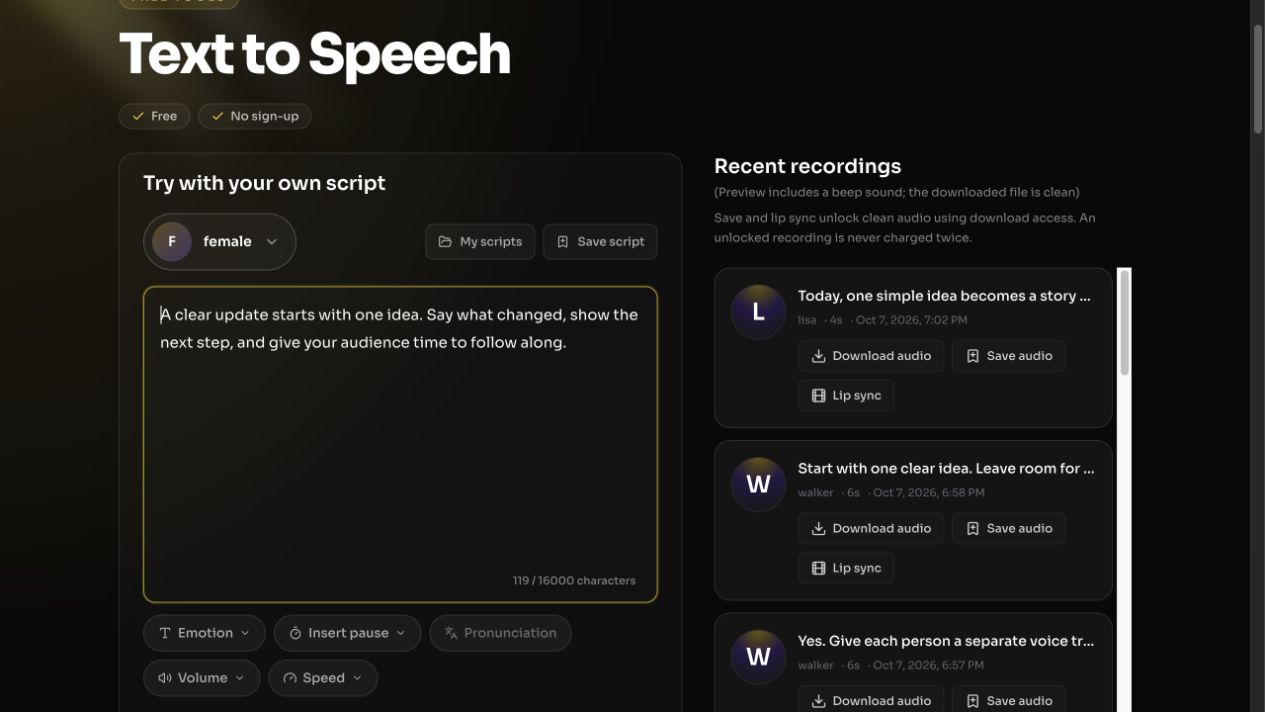
If you record many short updates, repeating the same recording session for every script change can slow production. FreeLipSync Voice Cloning turns an authorized speech sample into a reusable voice you can select for future Text to Speech. If your question is "How can I clone my voice for new scripts?", the workflow is sample, create, test, and then approve each new audio take. It is for consistent narration you have permission to make, not imitation without consent.
Why create a reusable voice?
A creator's weekly updates may need the same recognizable narrator even when each script changes. A course or support library may need consistent voice identity across many lessons. A product team may want an approved spokesperson voice for revised announcements. In each case, the voice stays consistent while the written content changes; that is the reason to clone once and test new lines carefully.
A founder-led product series may use a familiar voice for frequent feature notes when the founder cannot record every revision. A narrated knowledge base may need the same speaker across independently updated articles. These are repeat-production problems: a reusable voice reduces the need to capture a fresh performance for every small script change. It does not guarantee that every generated line carries the speaker's intended emotion, so keep human approval in the workflow.
Voice cloning does not replace editorial review. A new script can still sound awkward, mispronounce a name, or carry the wrong tone. Approve each finished audio file before using it in a talking-photo or video project.
How to prepare and create the voice
- Get a permitted recording. Use your own voice or obtain explicit permission from its owner. Record one speaker naturally in a quiet room, without music or heavy echo.
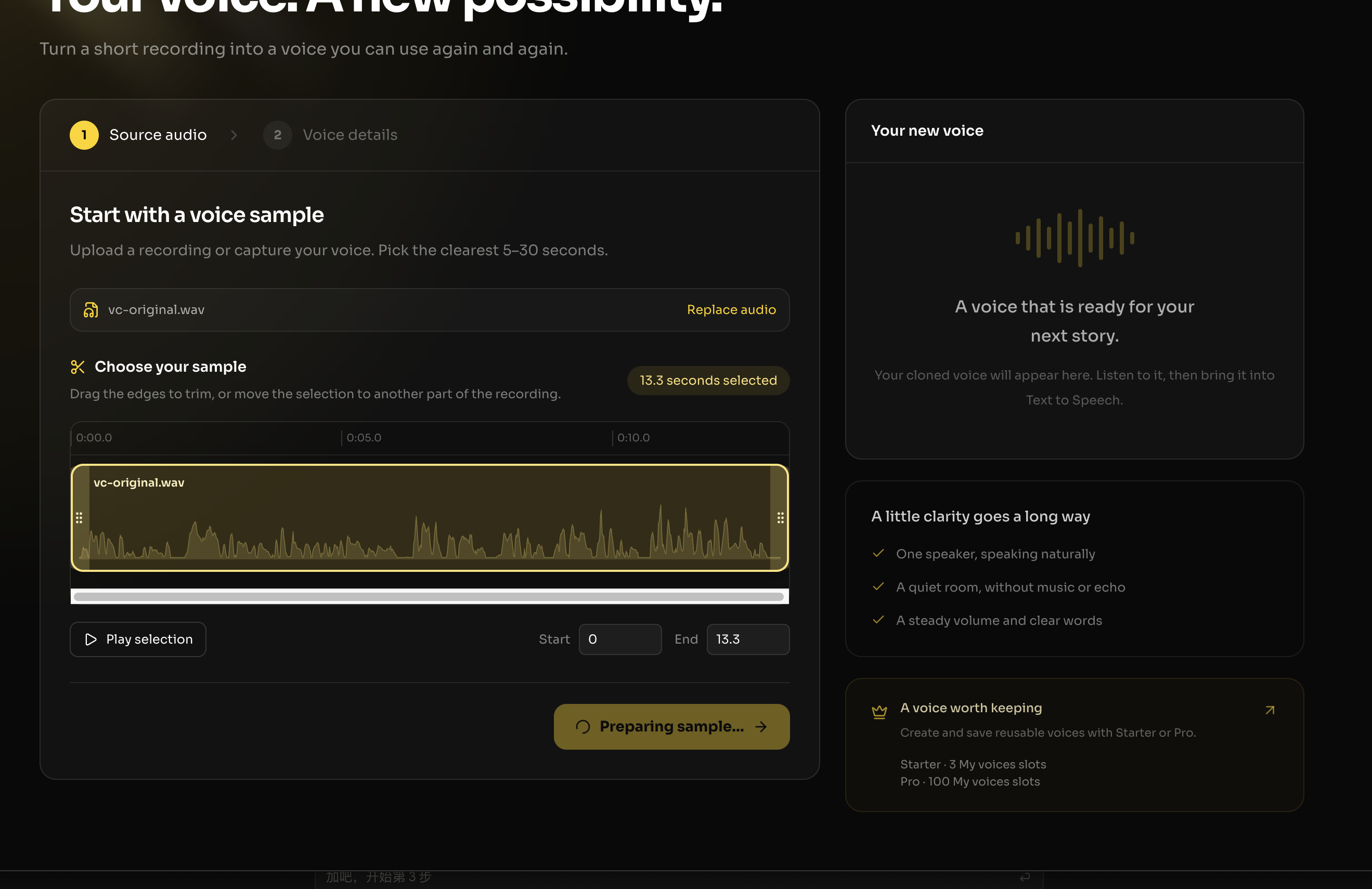
- Select a clean sample. Upload a supported audio file or record in the browser. Listen to and trim the clearest 5–30 seconds rather than feeding the entire source file into the sample selection.
- Review the details. Check that the optional sample transcript matches the spoken words. Choose the recording language, name the voice, and confirm that you have the right to create it.
- Create and test. Voice creation uses a Starter or Pro voice-library slot. Preview the saved voice, then open Text to Speech and generate a short line in the same voice. Listen for pronunciation and identity before writing a long script around it.
Test the clone with words it has not heard
The sample preview tells you whether the selected recording is clean; the useful test is a new sentence. Try a line that includes a name, a number, and the kind of phrase you actually publish. Compare it with your normal speaking voice for recognizability, then check whether the sentence is intelligible and paced for the intended video. If the test is weak, revisit sample quality and the selected 5–30-second segment before building a series around the saved voice.
AI voice cloning and AI voiceover generation answer different questions. Cloning creates a reusable voice identity from an authorized sample. Text to Speech applies that voice to a particular script and produces audio. A talking-photo or lip-sync tool then uses the approved audio in a video; creating a voice alone does not make a video.
Example: a short Chinese sample for an English voiceover
This example starts with a 13.3-second recording of one consenting speaker in Chinese. The selected clip and its transcript were used to create a saved voice with Chinese as the recording language. The source recording stays private; the image shows the selection workflow without publishing the speaker's raw audio.
The saved voice was then selected in Text to Speech for a different English sentence: “Maya has three steps to finish before Friday.” The screenshot records that an English test result was generated. It does not by itself establish pronunciation, similarity, or suitability for a public campaign; approve the audio for each real project before using it.
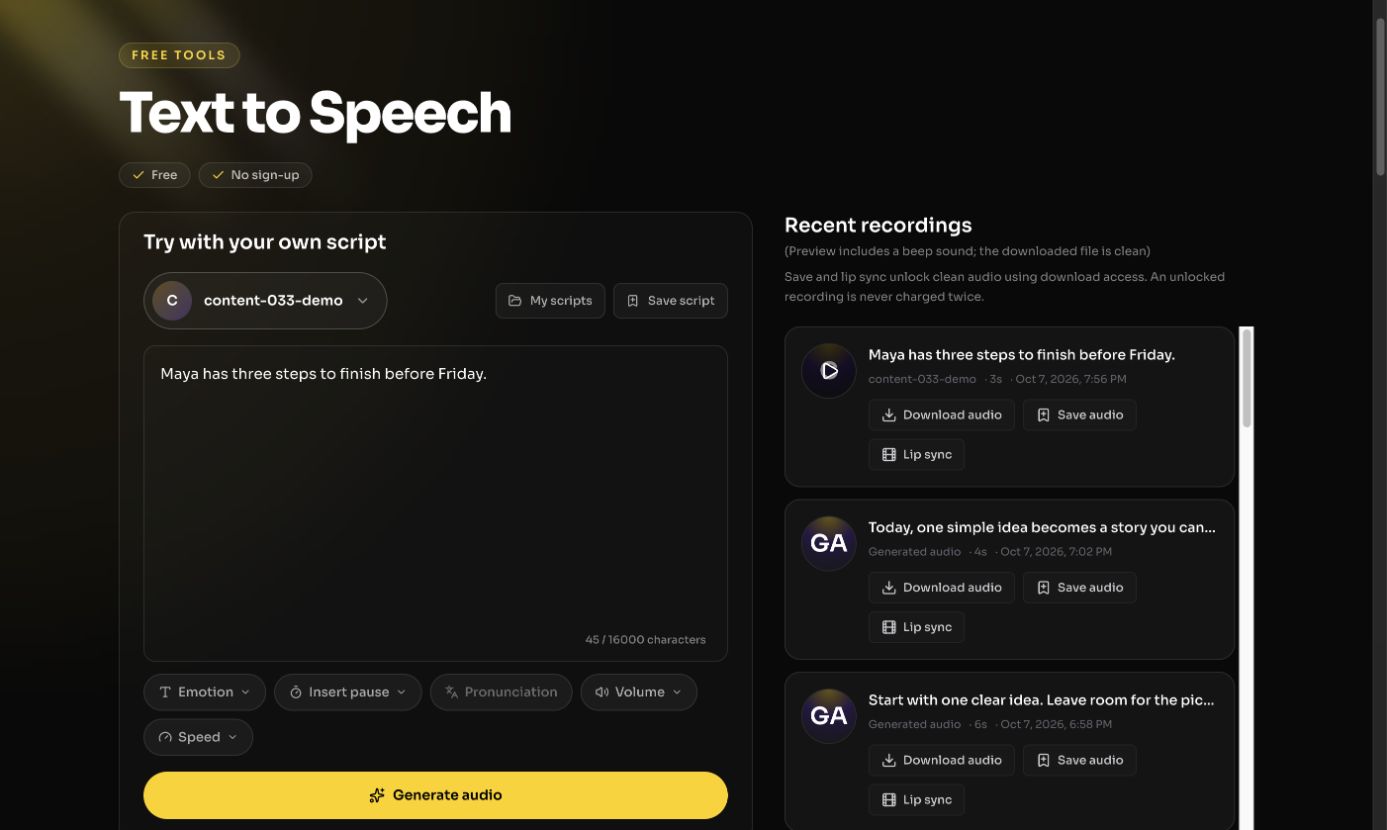
The practical sequence is select the recorded sample → check its transcript and language → save the voice → generate a new line. The original language and the new script language can differ, but each generated take still needs a human decision before publication.
Review what the clone actually says
Compare the test line with the source speaker for tone and clarity, but also check whether it reads the new words correctly. A successful creation status alone is not evidence that every script will sound natural. If the sample contains two speakers, music, or a long silence, choose a better section before trying to judge the result.
Frequently asked questions
Do I need a long source recording?
No. The tool lets you select a short, clear 5–30-second sample from a recording or live capture.
Can I use somebody else's voice?
Only with explicit permission to clone and use it. Keep that permission with your production record.
What happens after the voice is created?
Preview it, then use it in Text to Speech for a reviewed script. Check the final audio before placing it in a video.