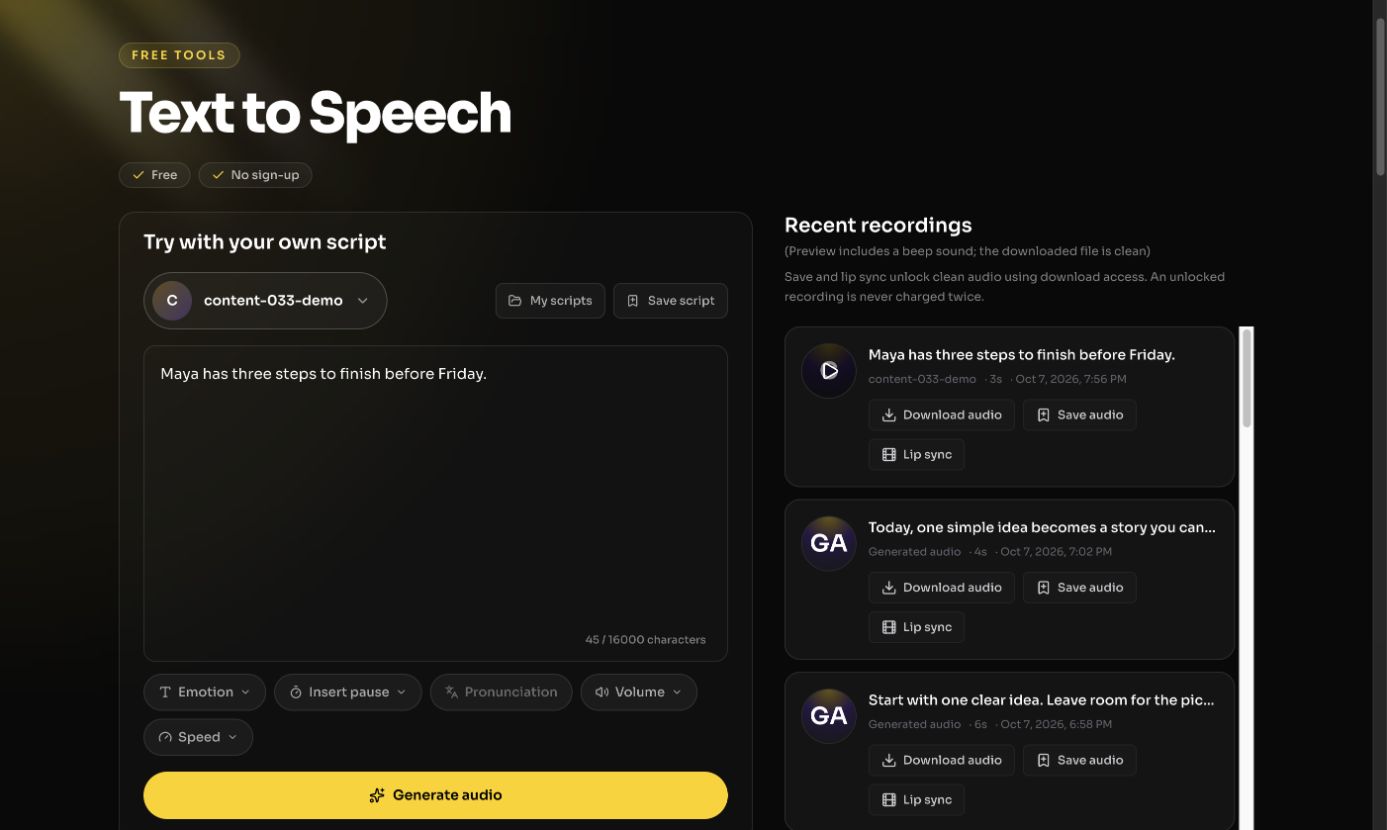
When you have a script but no finished recording, FreeLipSync Text to Speech works as an AI voiceover generator: turn the text into speech, approve the audio, then use that exact take in a video. For text to speech for video, the useful decision is not simply which voice sounds pleasant. The words, pronunciation, pauses, and intended visuals must fit together before you animate a face.
Why make the voiceover from text?
A product demo changes whenever a feature or price changes. Keeping the voiceover as editable text lets a team revise the line and make a new recording without booking another session. An onboarding lesson may need the same explanation spoken in several languages; each version still needs its own reviewed script rather than automatic translation. A character or brand announcement may need a consistent delivery across several short clips. A voice chosen for the audience helps the series feel coherent.
A narrated tutorial often needs a line that matches a specific on-screen action. Draft the instructions in the order viewers see them, then listen for whether the spoken version gives them enough time to follow along. A recurring social series may use the same voice and opening style while changing the weekly message. In both cases, the editable script makes revisions cheaper than repeating a recording session, but the finished audio still needs human review.
For a single authentic performance whose emotion and timing already work, an uploaded recording may be the better input. Text to Speech is most useful when the script is the source of truth and revisions are expected.
How to create and use the audio
- Write for the ear. Use short sentences, spell unfamiliar names clearly, and separate ideas where the speaker should pause. Decide which exact version of the script the final video will use.
- Choose a voice in the tool. Compare available voices in the target language. If you use a voice cloned from your own authorized sample, review it separately before treating it as the voice for a whole series.
- Generate and listen to the complete result. Check names, numbers, emphasis, and pauses with headphones. If one phrase sounds wrong, change the script or voice and generate a new take.
- Move into video. Pair the approved audio with a source image in Audio to Talking Photo, or with an existing shot in Audio to Video Lip Sync. Follow the tool's available handoff or download route for your plan.
Match the voiceover to the kind of video
For a product walkthrough, write one short spoken idea per screen change and name controls as they appear. For a talking presenter, choose the exact final take before generating lip sync; replacing the audio afterward would require checking the mouth movement again. For a localized lesson, adapt the script for the audience first and select a suitable voice for that language. Do not assume a word-for-word translation will keep the same timing or explain the interface clearly.
An AI voiceover generator creates the speech track; it does not write a trustworthy product claim, translate the script, or verify that the resulting video is ready to publish. Keep the approved script and audio together so later video edits can be checked against the correct version.
Example: a short product-update voiceover
The example script is: “A clear update starts with one idea. Say what changed, show the next step, and give your audience time to follow along.” It is intentionally short enough to test as a product-demo opener, lesson introduction, or social-video narration. The selected saved female voice and script are visible in the editor screenshot.
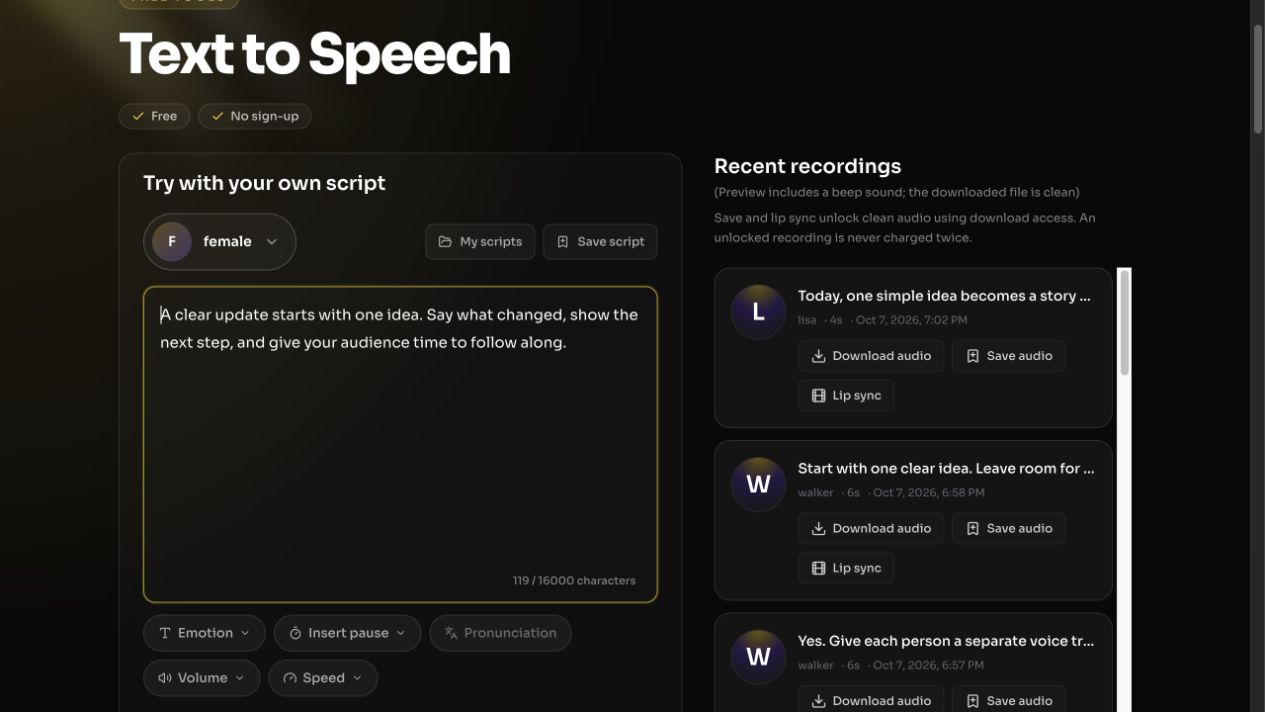
The generated WAV is provided below. Use it as a voiceover source; it is not already a lip-synced video. If your goal is a talking person, take the approved audio into a separate image or video lip-sync workflow after checking its words and pacing.
When making several updates, keep a reusable voice and script format, but check each new take before pairing it with visuals. Text to Speech saves a recording step; it does not choose the right message for your audience.
Review before publishing
Listen once for meaning and once for sound. A voice can pronounce every word correctly yet still pause in the wrong place for the visual. Keep the approved audio and exact script together so the later lip-sync example uses the same line. Generation and playback are separate from file-download rights; check the current account options in the tool rather than assuming every preview can be downloaded.
Frequently asked questions
Does Text to Speech translate my script?
No. Write and review the target-language text yourself before generating its speech.
Can I compare voices without re-recording?
Yes. Keep the script fixed and audition another available voice, then compare the complete audio rather than only a short sample.
Can I use the result for lip sync?
Yes. Use the approved speech as input for a talking photo or an existing-video lip-sync project, and check that the final mouth movement follows that specific take.