
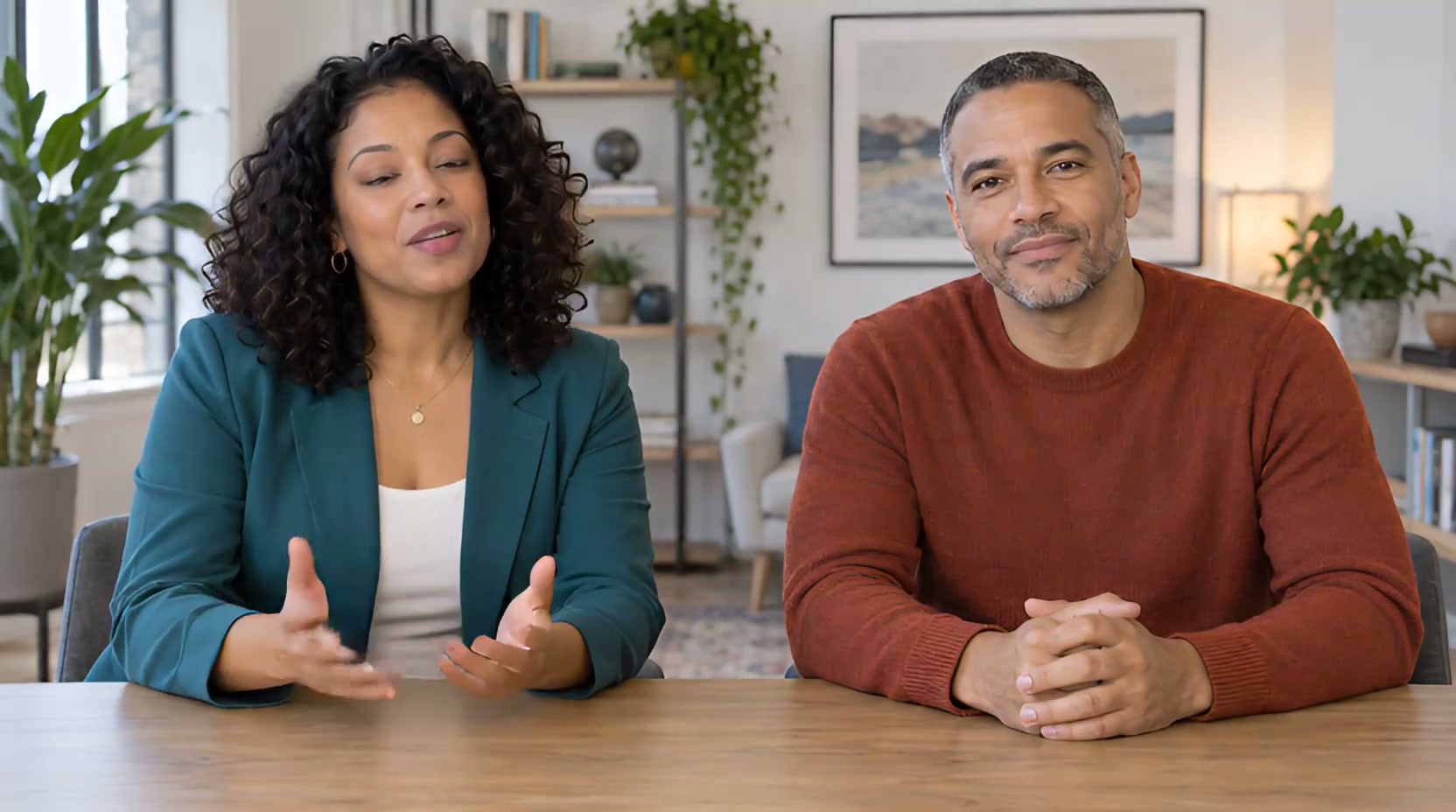
When a story needs more than one speaking shot, Multi-Scene Lip Sync lets you place prepared images in order and give each scene its own text or audio. A two-host podcast can move from a shared view to individual close-ups. A two-singer music video can cut between vocalists and return to a shared hook. The tool combines the scenes into one video, but you plan the images, speaker, audio, and order of each shot.
Why use several scenes instead of one long talking photo?
A two-host podcast excerpt has natural changes of attention: begin with both speakers, cut closer for a question, show the guest's answer, then return to the pair. The cuts help viewers follow who owns each line without needing filmed camera coverage. A two-singer music video can use the same logic musically: a wide view establishes the duet, solo close-ups follow each vocal line, and the shared frame returns for a unison refrain. In each case, several prepared images give the edit a visual rhythm that one static portrait cannot provide.
The two-person conversation tool is useful when the exchange stays in one shared image and you need separate speaking tracks. Multi-scene changes the image between shots. It can include a two-person image, but each card has one input; choose which visible person speaks. Selecting all gives both faces the same scene audio, which suits a unison line, not two different simultaneous lines or harmonies.
How to build the storyboard
- Mark the beats or speaking turns. For a podcast, put each question or answer in its own shot. For a song, choose line boundaries and musical beats that can survive a cut without breaking a word.
- Prepare the image set. Use a permitted wide image of both people and matching solo close-ups. Keep framing and identity coherent across images. The first image sets the output aspect ratio.
- Prepare audio per card. Enter text or upload the exact audio for each scene. Keep podcast host and guest voices consistent across their shots. For a music video, cut consecutive beat-aligned segments from one approved song; the editor does not automatically divide a full track at your storyboard cuts.
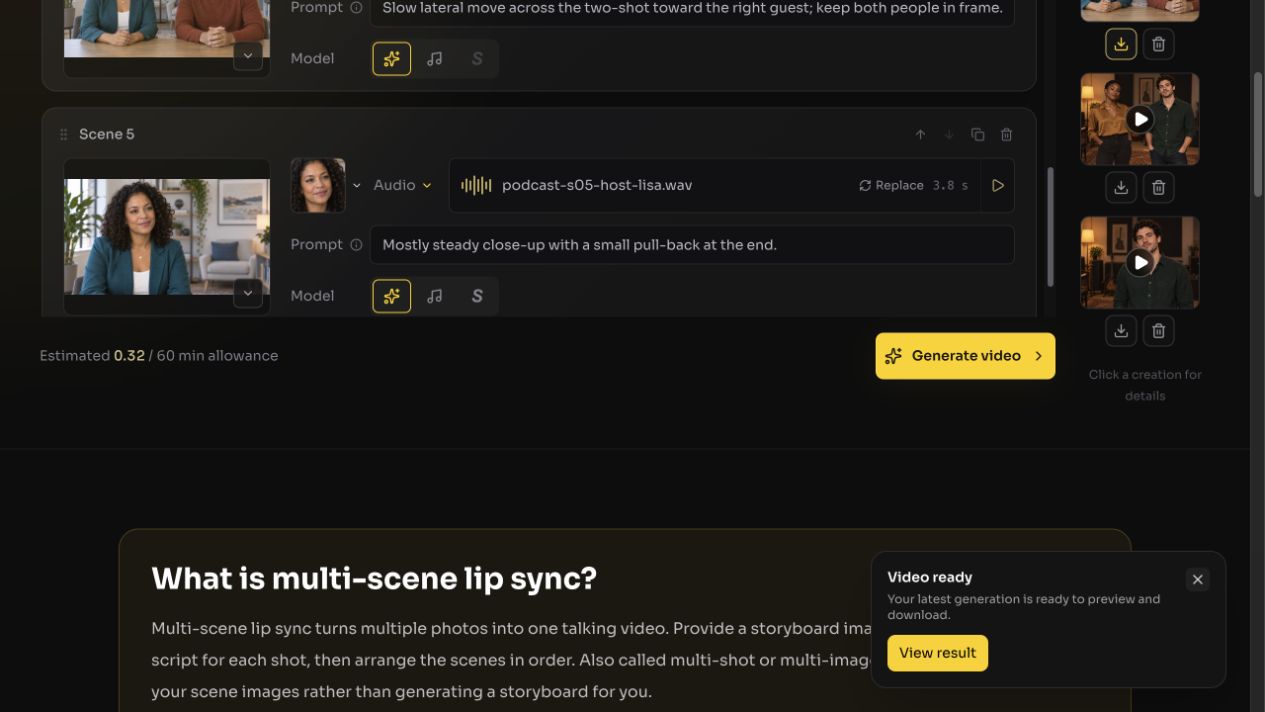
- Choose the active face and model. Select the left or right person in a two-shot, or the only person in a close-up. A shared unison line can target all visible characters, but that sends the same audio to both. In the MV below, the two-person shots use Sing (shown as Music in the editor) and the single-person close-ups use Super. Review model availability for each image: Super is disabled for a two-person shot.
- Add movement sparingly. A gentle push-in, pull-back, or lateral drift can give a shot direction. The optional description is a prompt rather than an exact camera path, so keep faces within the intended frame and check what actually happened.
- Generate and inspect. Check the combined allowance before submitting. Watch every cut with sound for missing beats, audio discontinuities, correct speaker assignment, identity continuity, and lip sync.
Two worked storyboards: podcast and music video
A five-shot host-and-guest podcast
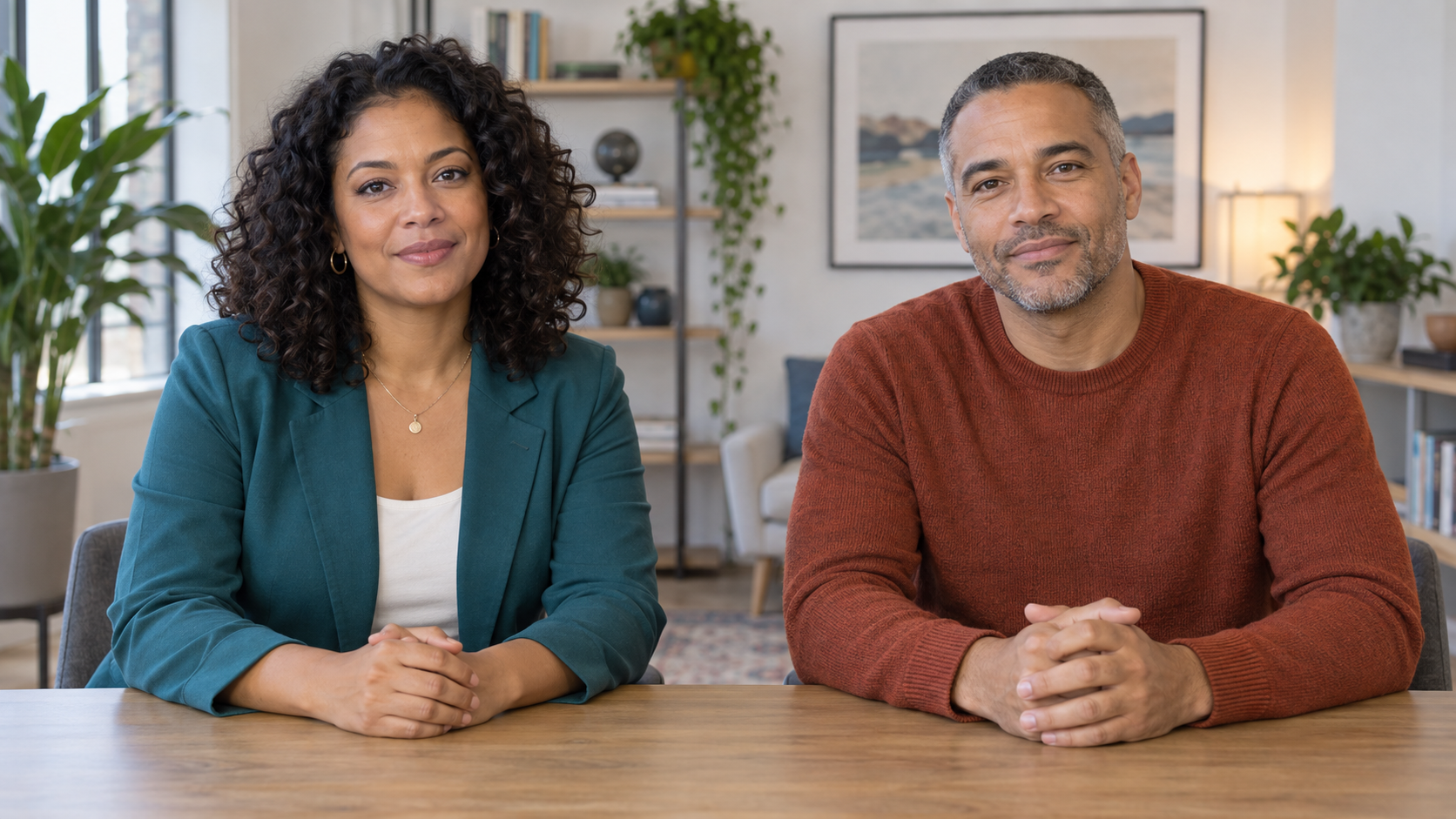
The podcast starts from a two-host image and separate close-up images of the left host and right guest. Its five cards follow the conversation: both speakers to establish the room, a host close-up for the question, a guest close-up for the answer, a return to the shared view, and a final host close-up. Each card has its own spoken line and active face. The editor screenshot shows the assembled sequence.
A five-shot two-singer music video
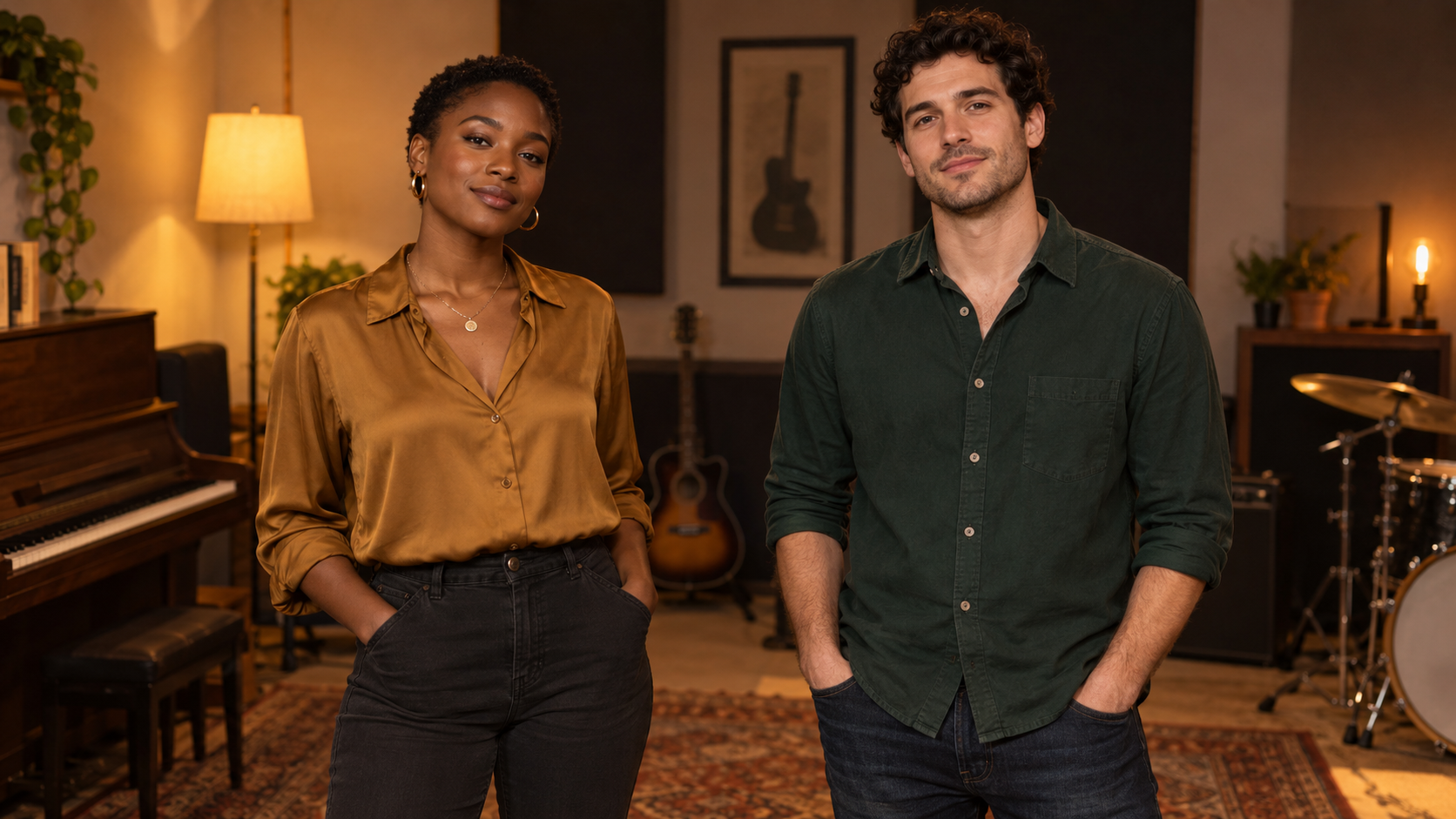
The second storyboard uses a two-singer image plus separate close-ups. The right singer begins, then the left singer takes the next shot; the sequence alternates their lines and returns to a shared frame. The scene-specific audio was prepared from the supplied song before assembly. The shared two-person shots use Sing/Music; the single-person close-ups use Super. A two-person shot is not a place to select Super in this workflow.
For both projects, the editing unit is a scene, not an automatically generated camera angle. Prepare the matching image and line for each card, then inspect the combined result for cuts, voice assignment, and continuity. The videos show the actual generated outputs; they do not establish that every optional motion prompt was followed exactly.
Where quality can change
The editor supports up to 30 scenes, but that is a tool ceiling, not an editorial target. A short storyboard is easier to review. Character consistency across separately generated scenes and exact adherence to optional camera prompts are not guaranteed, so compare each scene with its source image. Music also needs special care: even if every individual scene lip-syncs, a cut can interrupt a sustained note or change the backing track level. Compare the combined result with the approved full song. If you only need one portrait speaking continuously, use the talking-photo workflow instead.
Frequently asked questions
Does it generate storyboard images?
No. Bring or select an image for every scene.
Can I mix text and audio?
Yes. Configure the input for each scene separately, and check the combined allowance in the editor.
Can a scene show two people?
Yes. A scene can use a two-person image and select one visible speaker, or select all for the same shared audio. Use separate scene cards for alternating dialogue; this tool does not give two different audio tracks to the two faces in one card.
Will the camera follow my description exactly?
No. An optional camera or motion description guides generation. Check the actual framing and movement in the unedited result before describing it in the published tutorial.


