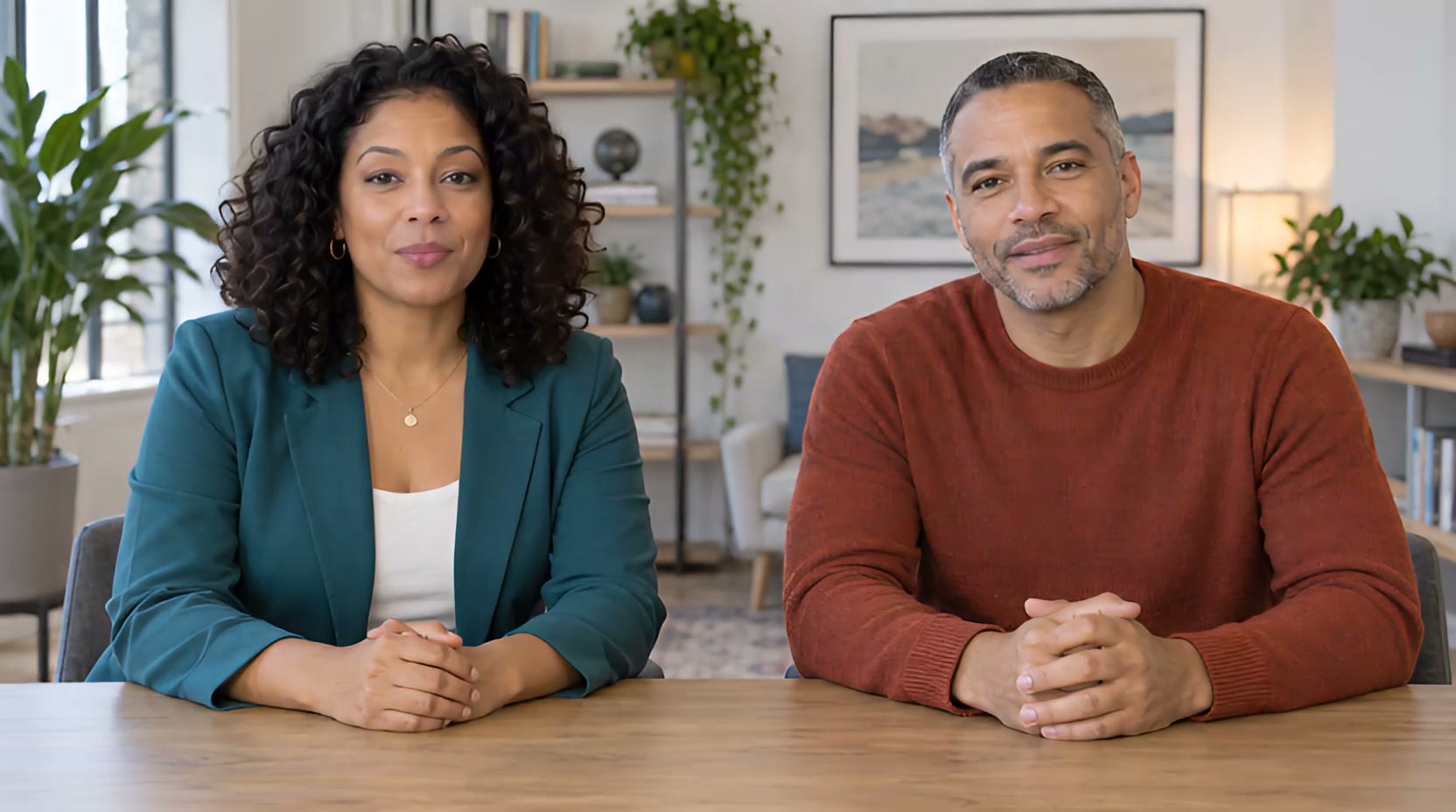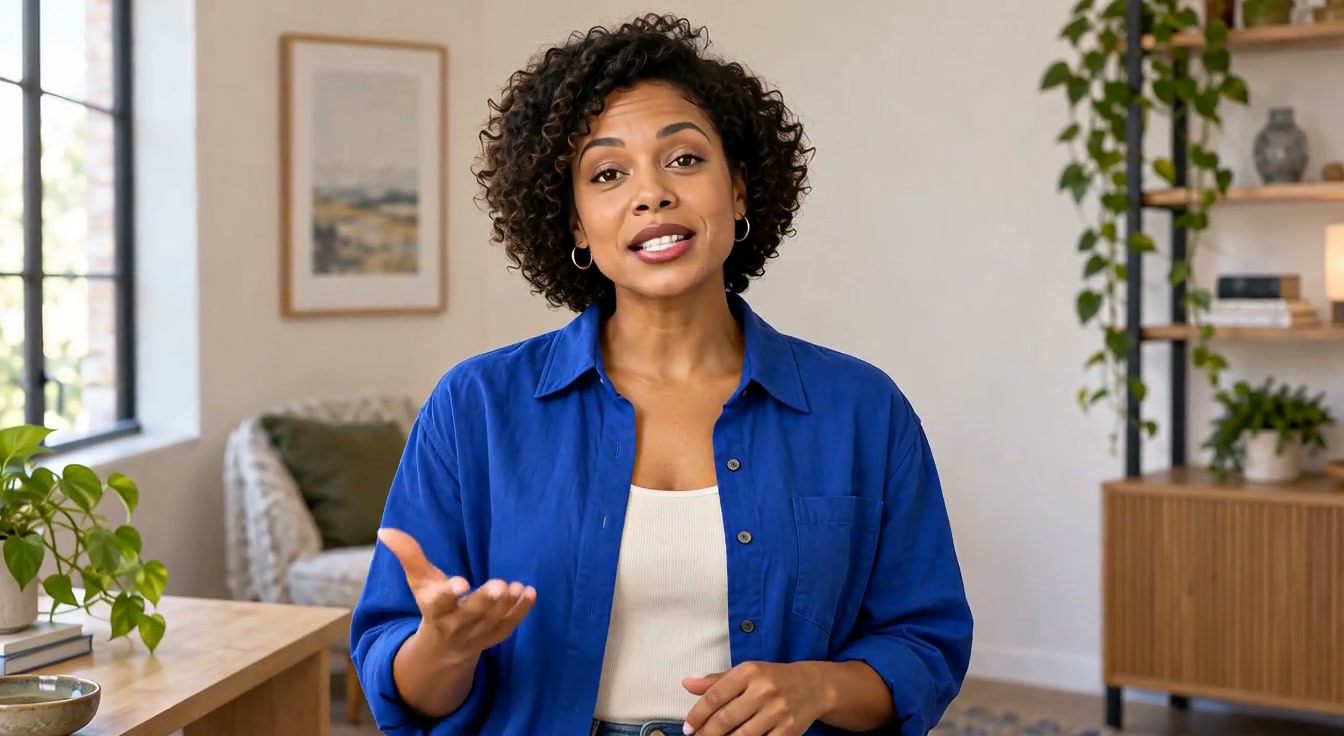
A talking photo can do more than hold a static pose. If a presenter needs to turn, gesture, or move through a shot while speaking, Lip Sync Motion Control lets you start from an image, supply text or audio, and describe both the subject's action and the camera's movement. It creates a new shot; it does not preserve the motion of a video you already filmed.
Why use motion control?
A product announcement may need a speaker to lean toward the camera while delivering one short line. A character scene may need a gesture or a change in framing to match a moment in the script. A course or social-video opening may benefit from a subtle push-in instead of a still talking head. In each case, the reason to use this tool is the relationship between the spoken words and the visible action, not motion for its own sake.
Keep the first attempt simple. A short line, one subject action, and one camera direction make it easier to judge whether the face, timing, and movement belong together. Long lists of competing instructions make that assessment harder.
How to create the shot
- Choose the source image and speech. Use a portrait or character image you own or are allowed to animate. Type the line, or bring a finished recording if you need to preserve its performance.
- Write the action. Describe what the person does while speaking, such as slowly removing glasses. Keep the instruction observable within one shot.
- Write the camera direction. Describe a gentle push-in, pull-back, or framing change that still lets viewers follow the speaker. Action and camera are separate fields in this workflow.
- Generate, then watch with sound. Check that the subject speaks through the action, that the face stays recognizable, and that the camera does not hide the important moment. Revise one direction at a time if the first result misses the intent.
Example: one portrait, one spoken line, one moving shot
The source is the presenter portrait below. The submitted line was “Today, one simple idea becomes a story you can share.” The action direction asked the presenter to raise one open hand and relax it; the camera direction asked for a gentle push-in toward a medium close-up. Those are two different instructions: one describes the person, the other describes the viewpoint.
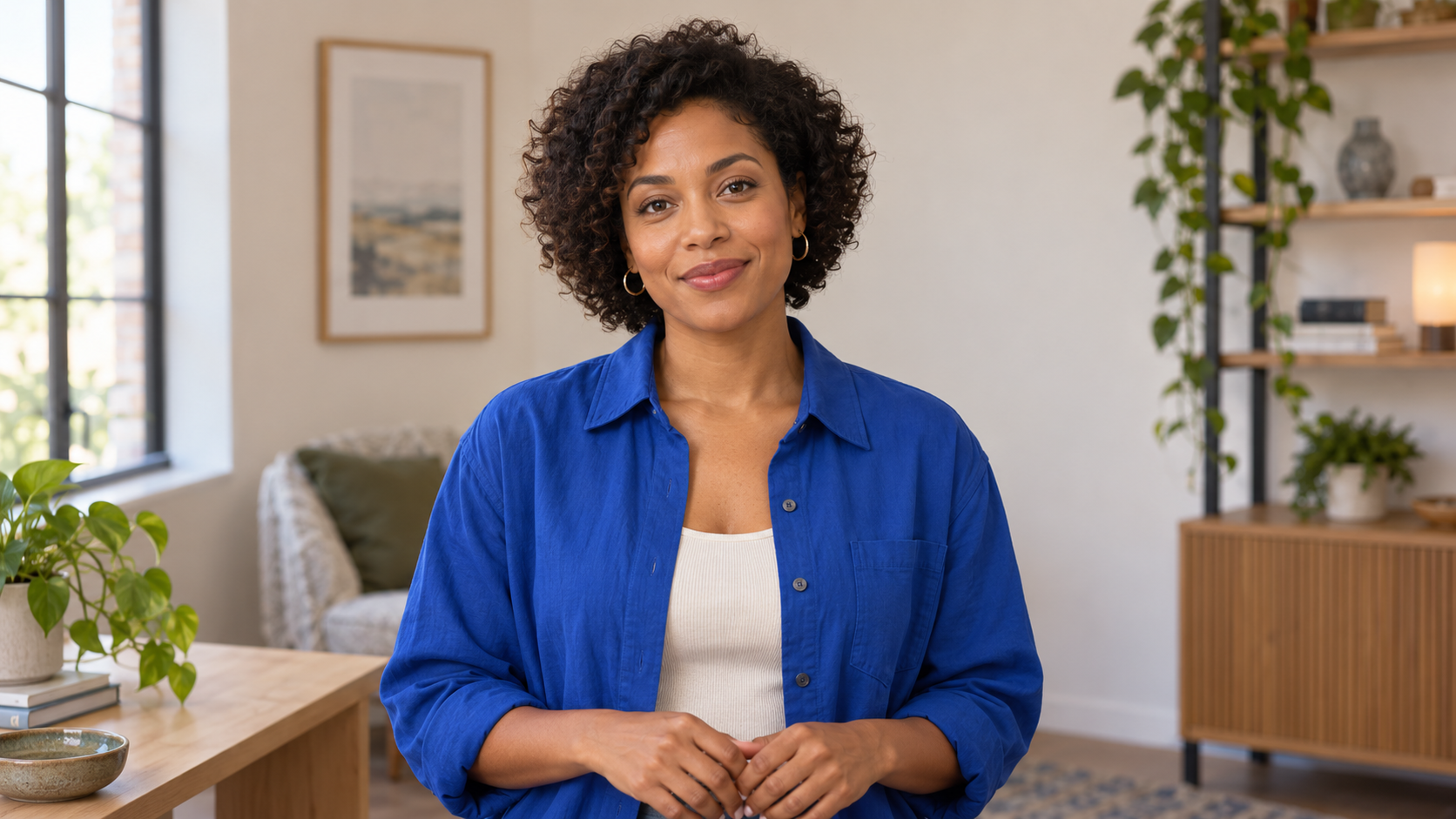
The editor capture shows the generation in progress. It is a record of the workflow, not proof that the requested movement was followed precisely.
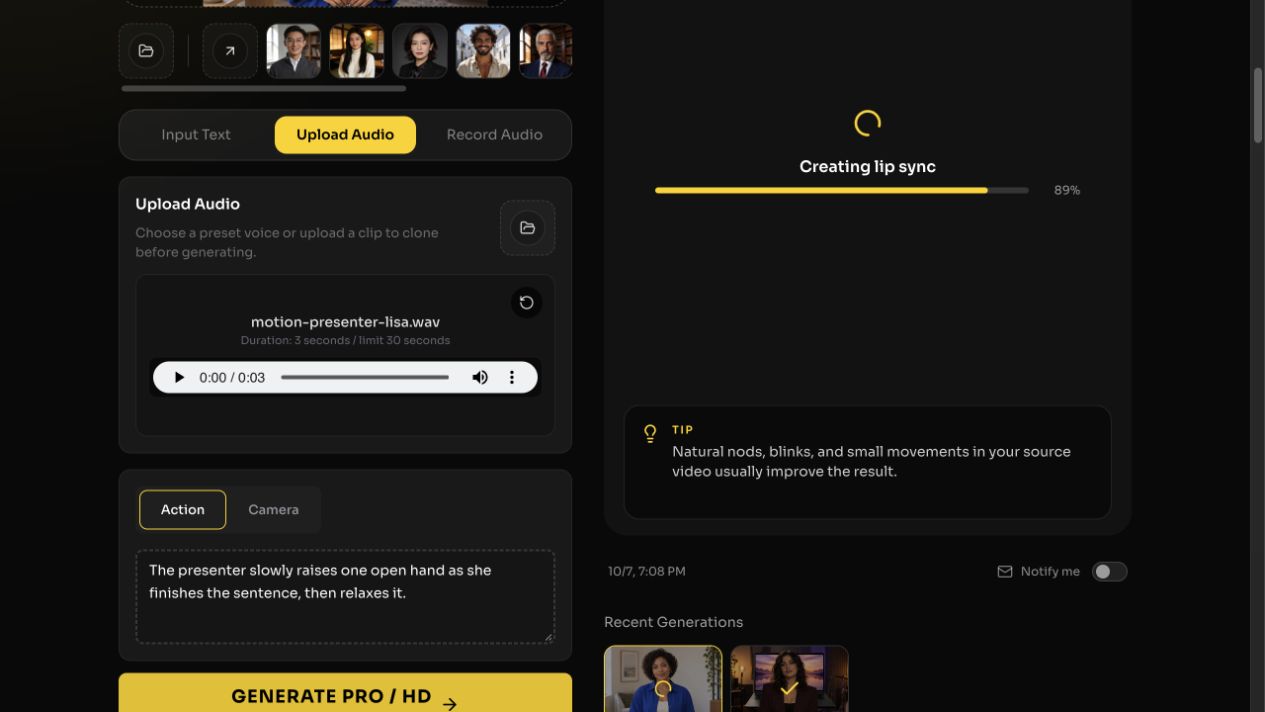
The finished clip is short enough to compare against the source and the directions without guessing how a longer scene would behave.
For a different script, keep the action and camera instructions brief, then judge the generated clip itself. A prompt describes the intended shot; it does not provide frame-by-frame control.
What to check before sharing
Review the entire clip at normal speed. Watch for a pause in speech during the action, an unexpectedly cropped face, or a gesture that changes the subject's identity. Motion prompts guide generation but do not guarantee an exact camera path. If the goal is to keep an existing video shot and change its words, use the video script-rewrite tutorial instead.
Frequently asked questions
Do I need to film a source video?
No. This workflow begins with an image plus text or audio and generates a moving shot.
What is the difference between action and camera direction?
Action says what the subject does; camera direction says how the shot frames or follows it. Keep both brief and check the generated result.
Can the subject speak while moving?
That is the intended workflow. Judge the finished clip for continuous speech and believable mouth movement rather than assuming the prompt was followed exactly.