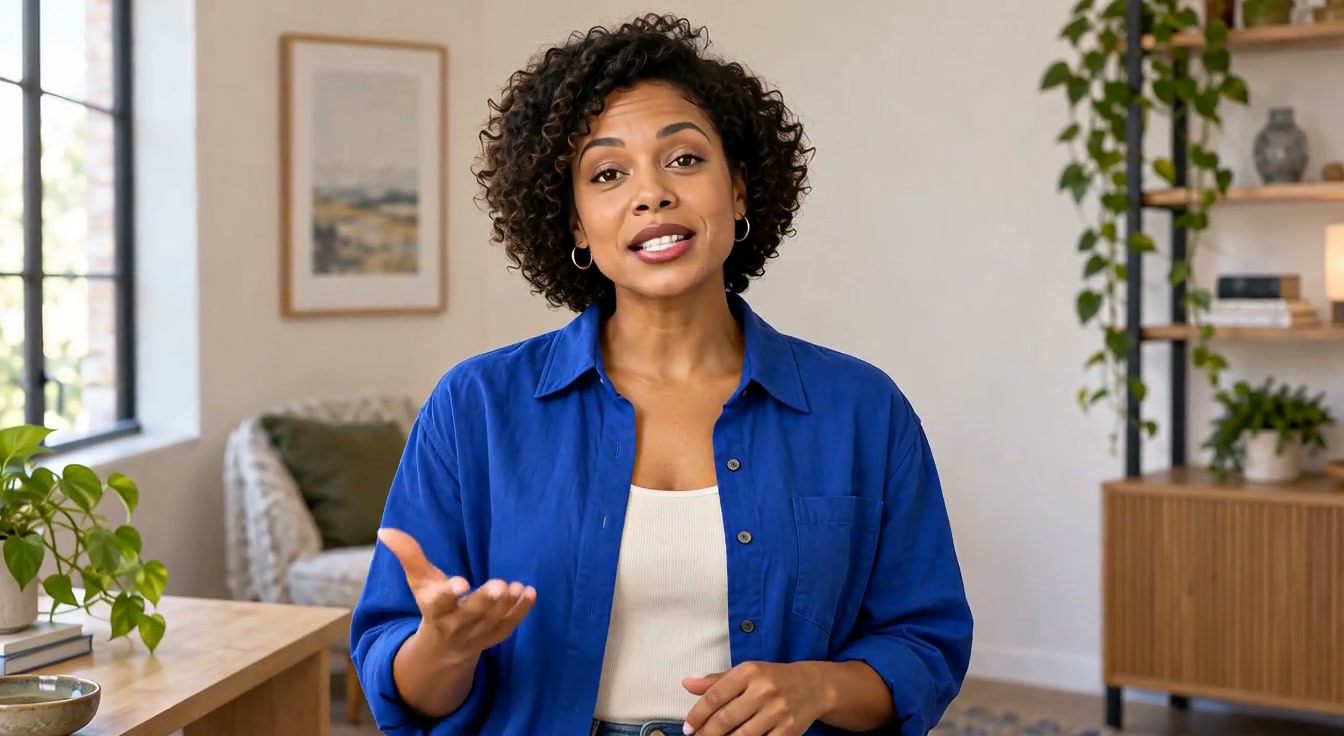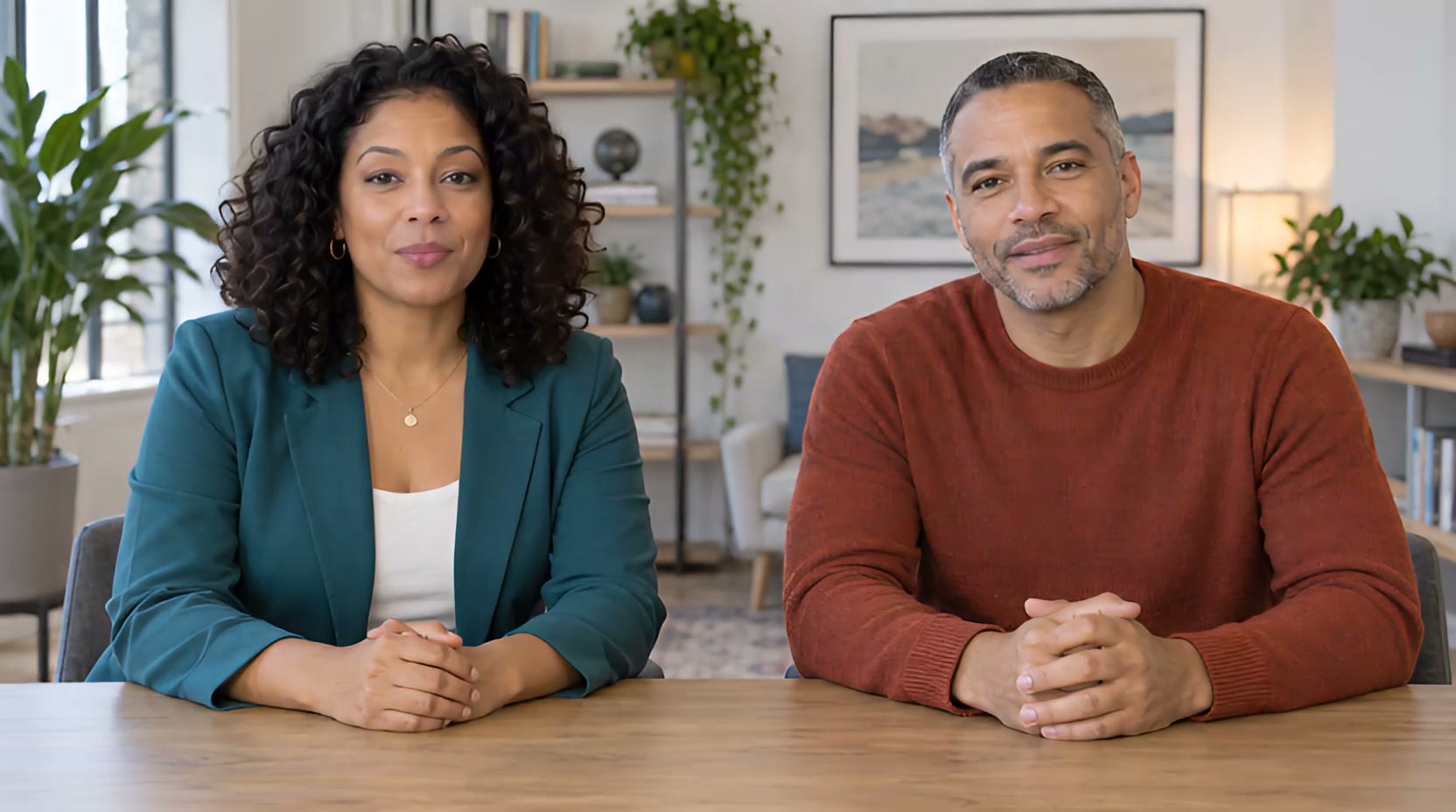
To make two people talk from one photo, prepare an image with both faces and separate audio for each speaker. In Two-Person Lip Sync, you place those clips on two timeline tracks before generating one conversation video. This is a dialogue workflow: the important decision is who speaks when, not simply how many faces appear in the picture.
Why build the conversation on a timeline?
A training role-play needs the customer's question to end before the support agent responds. A character sketch may need a quick interruption, followed by a pause for a reaction. A short interview may need one person to ask a question while the other listens. If those lines are flattened into one mixed recording, it is harder to assign each part to the right person. Separate tracks make the intended speaker and timing explicit.
For an actual two-host podcast format, the AI Podcast Video Generator uses this same two-person foundation with a podcast-focused page and example. This tutorial stays with the general dialogue mechanics so the two articles do not repeat the same scenario.
How to make two people speak
- Choose one source image. Use a photo or original illustration you may animate. The tool uses the two leftmost detected faces as speaker 1 and speaker 2; check the assignment against the actual image before continuing.
- Prepare separate voice clips. Record or obtain the approved lines for each character. Name the clips by speaker and order so you do not put a line on the wrong track.
- Build the conversation. Add clips to the matching tracks. Drag them into order, leave empty space for silence, and overlap the two tracks only for an intentional interruption or simultaneous line. Clips on the same track cannot overlap.
- Generate and watch through. Check the final timeline length and the current plan limit. Then inspect the completed video with sound, especially handoffs and any overlap.
Example: two speakers, one picture, separate turns
The source image shows two fictional people together. The left speaker asks, “Can we show both speakers using one picture?” The right speaker answers, “Yes. Give each person a separate voice track, then check who speaks in the finished clip.” Their lines were prepared separately and placed on the matching tracks with a pause between turns.
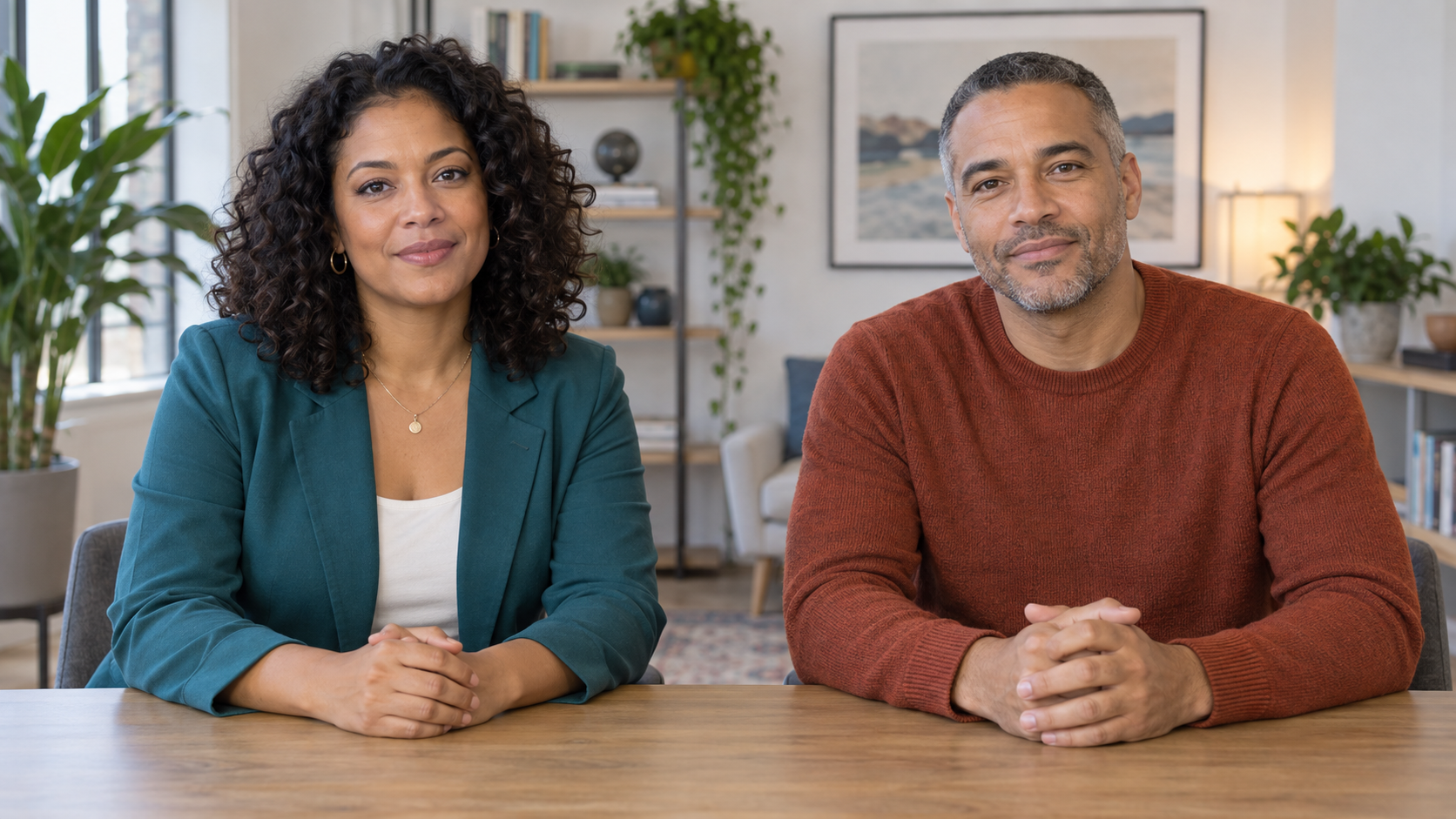
The example uses the saved lisa and walker voices selected for these demos. The source image is the visual input; the separate voice clips establish which person speaks at each point.
For a longer conversation, write and assign the whole exchange before generating. The key review is whether each line belongs to the intended face and whether the handoff leaves enough room for the viewer to understand the reply.
Check who speaks when
Watch each line with the source timeline open. If the wrong face appears to speak, first inspect the left-to-right face assignment and track placement. If the pause feels rushed, move the second clip rather than adding silent audio to both recordings. The tool supports up to 10 clips per speaker and an absolute five-minute output maximum; the plan shown in the editor may allow less.
Frequently asked questions
Can the two speakers interrupt each other?
Yes. Overlap the clips on different tracks for a deliberate interruption. One speaker's clips cannot overlap within that speaker's own track.
What happens between lines?
An empty gap becomes silence. Use gaps to make listening and response timing readable.
Do I need two separate photos?
No. The input is one image containing two people; each person's speech is arranged on a separate track.