
Complete video walkthrough
Make a Photo Sing — One Portrait and One Song Clip — Full walkthrough
One portrait plus one short song clip, run through Make Photo Sing. See the photo, the audio, the lyrics and the untouched result. The whole process on video, from the source files to the finished clip.
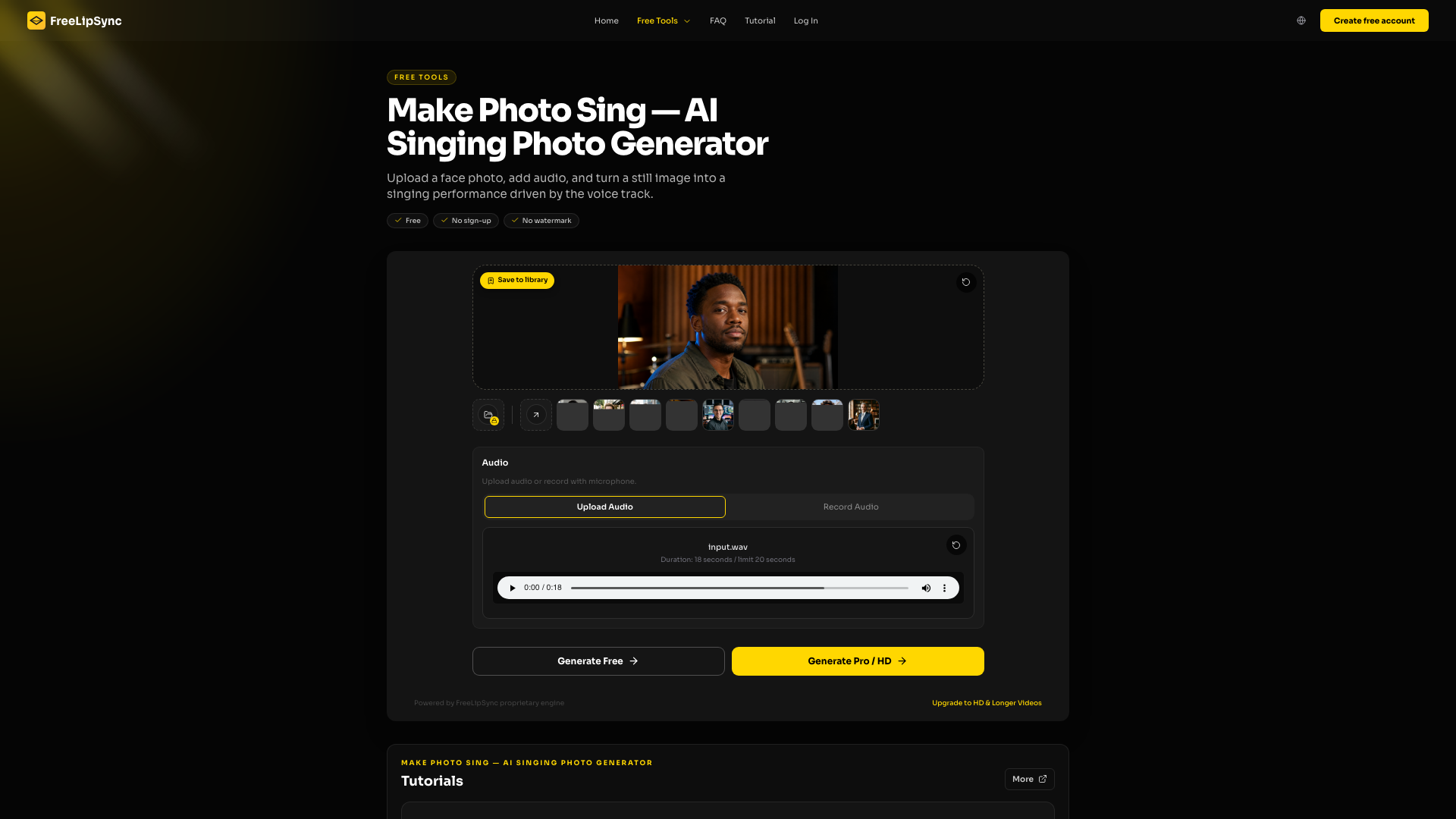
To make a photo sing, upload one portrait and one short vocal clip to Make Photo Sing and generate once — those two files are all the tool needs. Everything used for the video below is on this page: the photo, the song, the screen we generated from, and the clip exactly as it came back.
The song is a short original demo rather than a licensed track, which is why we can publish it here in full.
The full walkthrough
Open this video on its own page
Everything used in this demo
- The photo: a head-and-shoulders shot at a natural three-quarter angle, not a passport-style front view.
- The song: a short original recording with clear lead vocals and light backing.
- The result: the whole render, untouched, with the uploaded song still on it.
- The generate screen: what the tool looks like right before you press generate.
The photo

The face is turned roughly thirty degrees away from the lens and the light is warm and uneven — closer to a photo someone would actually have on their phone than to a studio headshot. The only thing that really matters is that the mouth and jaw are unobstructed.
The song and the lyrics
The song we uploaded
Vocals sit well forward of the backing here. That is the single biggest factor in how closely the mouth tracks — more than image resolution.
Lyrics
Turn up the light, let the whole room glow
I found a rhythm and I'm ready to go
One little picture, one melody
Now watch this moment sing with me
The raw result
Watch it once through before judging it. Single frames from a lip-sync render almost always look worse than the moving clip.
Open the result on its own page
How to make a photo sing, step by step
- Pick the photo — One picture, one face, mouth and jaw not covered. A three-quarter angle is fine; a hand, a mug or a microphone across the lips is not.
- Open Make Photo Sing — The tool page is already set to image plus audio with the singing model, so there is nothing to configure.
- Add the song — Use a clip you own or have cleared. Ten to twenty seconds containing a complete line or two is enough for a first look.
- Render once — Check that the right photo and the right audio are loaded, generate, and keep the file you get back before you edit anything.
- Watch it all the way through — Judge the whole clip — timing, held notes, and whether the face still looks like the same person at the end as at the start.
What to look at in the result
Watch the consonants, the held vowels and the pauses between lines. On a human portrait the giveaway is usually the pauses: if the mouth keeps moving through a rest in the vocal, the render is following the backing track rather than the voice.
If it does not look right
- Mouth drifting on one line? Keep the photo, cut the audio down to that line alone, and render just that.
- Timing vague throughout? The problem is almost always the mix. Try a vocal-forward version of the same clip before you change anything else.
- Face wobbling or identity slipping? Re-crop wider. Giving the model more of the head and neck usually steadies it more than a higher-resolution file does.
What it costs
Testing is free: a 20-second generation uses no Pro Video, and a free sign-in unlocks a watermark-free download at reduced resolution. Beyond that you are charged per finished result rather than per second — one original-resolution video uses one Pro Video. Starter includes 20 Pro Videos every 30 days, an active Pro subscription is unlimited, and the one-off Creator Pack adds 5 Pro Videos that never expire.
See the plans and what each one costs
Questions people ask
Does the face have to be looking straight at the camera?
No. Three-quarter angles work, and often look more natural than a dead-on pose. What matters is that the lips and jaw are visible and nothing is crossing them.
How long should the first clip be?
Ten to twenty seconds. Long enough to contain a full line and a breath, short enough that you are not paying to find out the mix is wrong.
Does the song have to be in the same language as this page?
No. Lip sync follows the audio file, not the page. We used a matching-language song here only so the demo reads naturally.
Can I use a photo of someone else?
Only if you have their permission or another lawful basis for it. What is allowed varies by country and by where you publish, and platforms will act on a complaint either way.
Can I use a commercial song?
Not unless you own it or have cleared it for wherever you are posting. Original, commissioned, royalty-free or platform-licensed audio avoids the problem entirely.
Do it with your own photo
Load your own portrait into Make Photo Sing, add a song clip you have the rights to, and generate once before you commit to anything longer.
Last updated:


