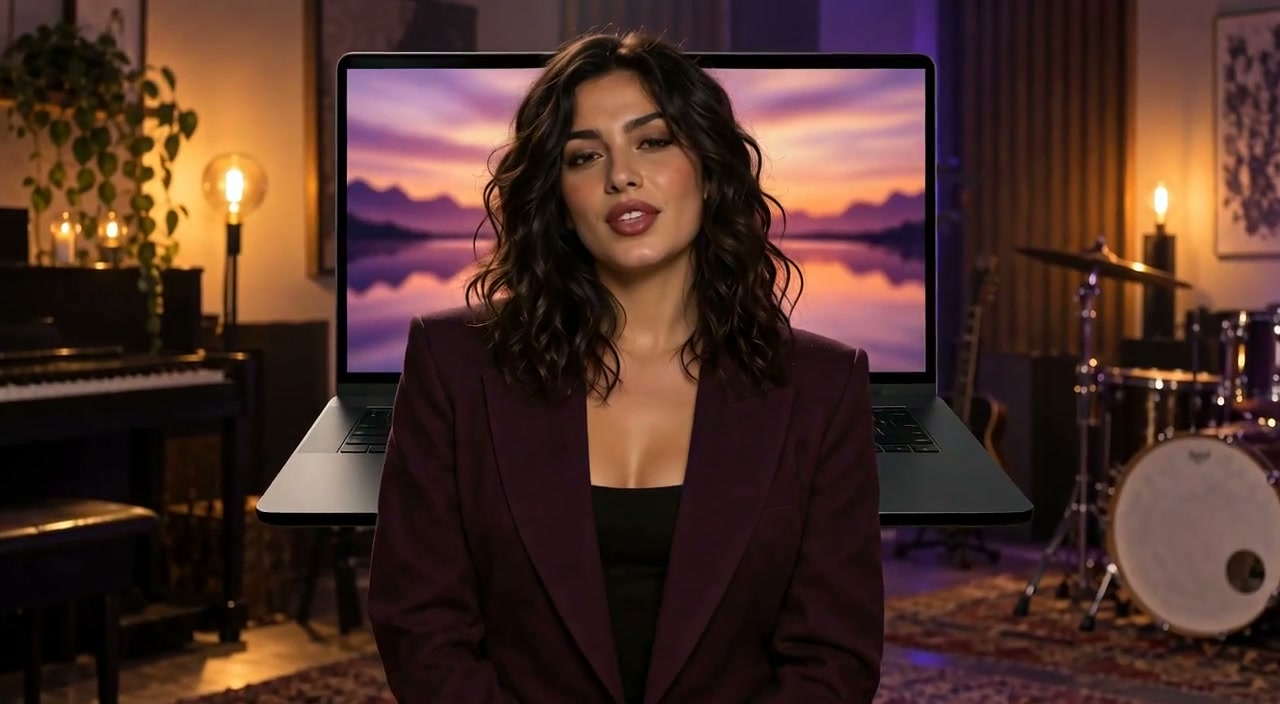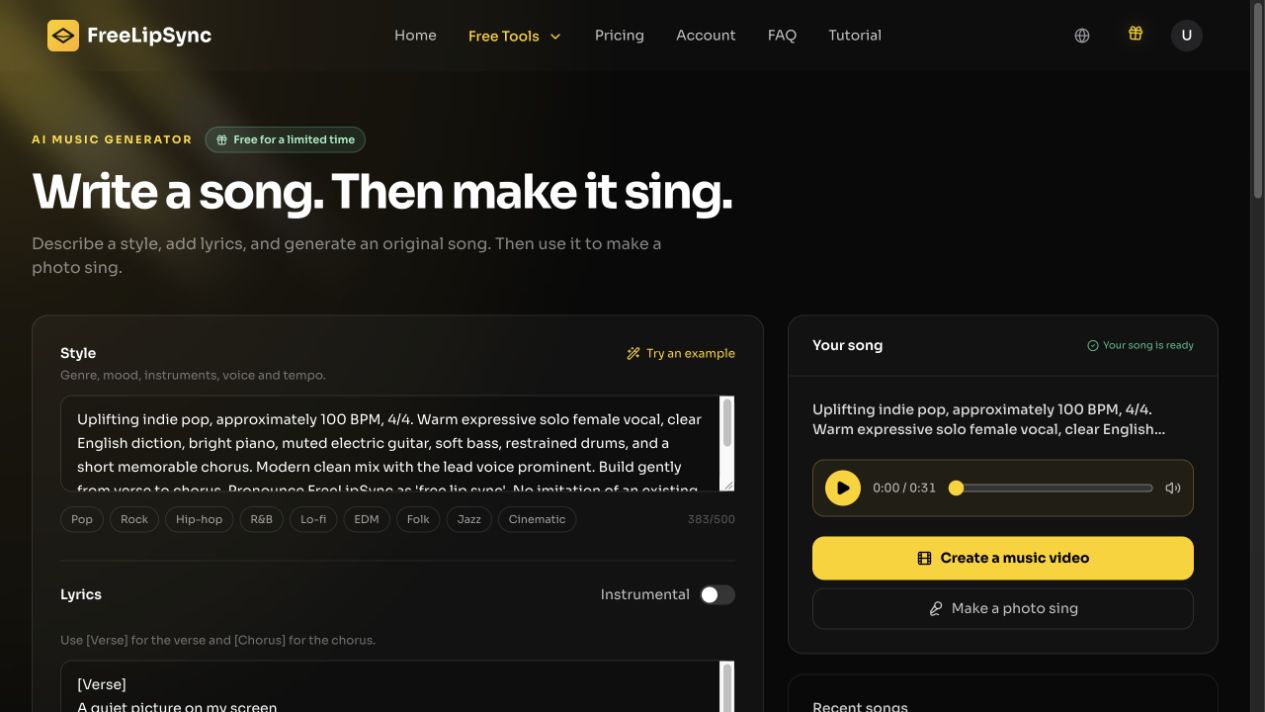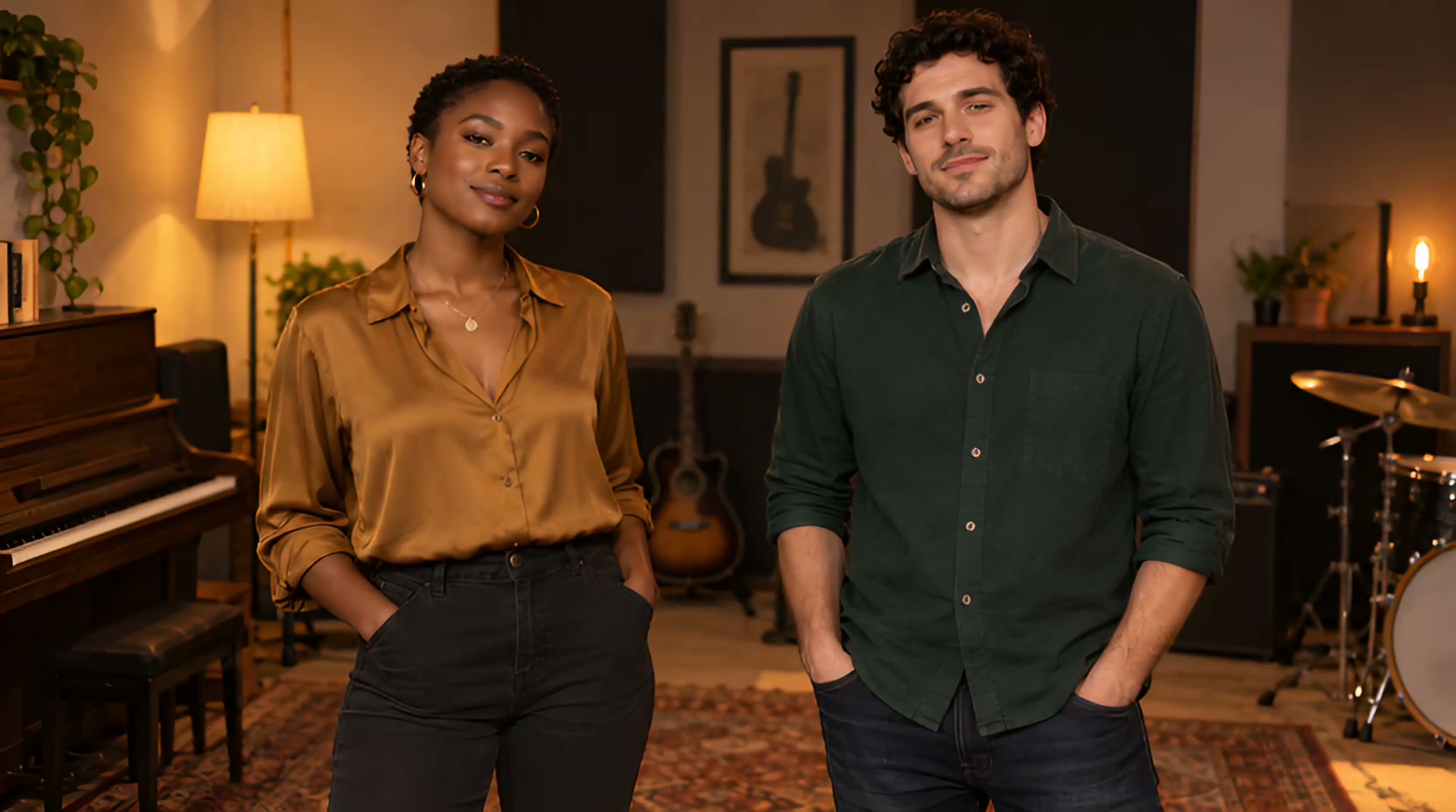
Two people in one image can perform different parts of a song. Two-Person Photo Singing gives each singer a separate timeline track so you can arrange solo lines, a handoff, or a shared chorus before creating the video. The important input is not just a photo and song: it is a clear plan for which voice belongs to which person at each moment.
Why plan the duet before generation?
An original two-singer chorus needs both characters to enter together. A call-and-response verse needs one voice to finish before the other begins. A celebration or character duet may alternate lines and then end with a harmony. Putting those patterns on two tracks makes the vocal roles explicit and gives the generated video a readable musical structure.
This differs from the AI Music Video Generator, which automatically arranges shots around one song, and from Make Photo Sing, which focuses on a single singing portrait. Use the two-person tool when the identity and timing of two singers matter more than automatic scene changes.
How to arrange the performance
- Choose a permitted two-person image. Both faces should be identifiable. Check which person is singer 1 and which is singer 2 before adding vocals.
- Prepare the vocal material. Use audio you own or may publish. Separate the singers' lines where possible so each clip can be assigned cleanly. Decide whether shared passages should overlap.
- Build the timeline. Add each vocal clip to its singer's track. Use empty spaces for solo sections, place clips consecutively for handoffs, and overlap tracks for a duet or harmony. Clips on one track cannot overlap each other.
- Generate and listen. Check every entrance with sound and watch for the wrong person appearing to sing. Review the finished soundtrack as well as the mouth movement.
Example: a FreeLipSync call-and-response duet
This example begins with one fictional two-singer image. The supplied song was divided into five aligned sections: the right male singer starts, the left female singer answers, the right singer takes the third line, the left singer takes the fourth, and both share the final “FreeLipSync, we sing side by side” refrain. The left and right timeline tracks were arranged from those supplied sections. They are not isolated vocal stems, so this example demonstrates timing and singer assignment rather than independent harmony editing.
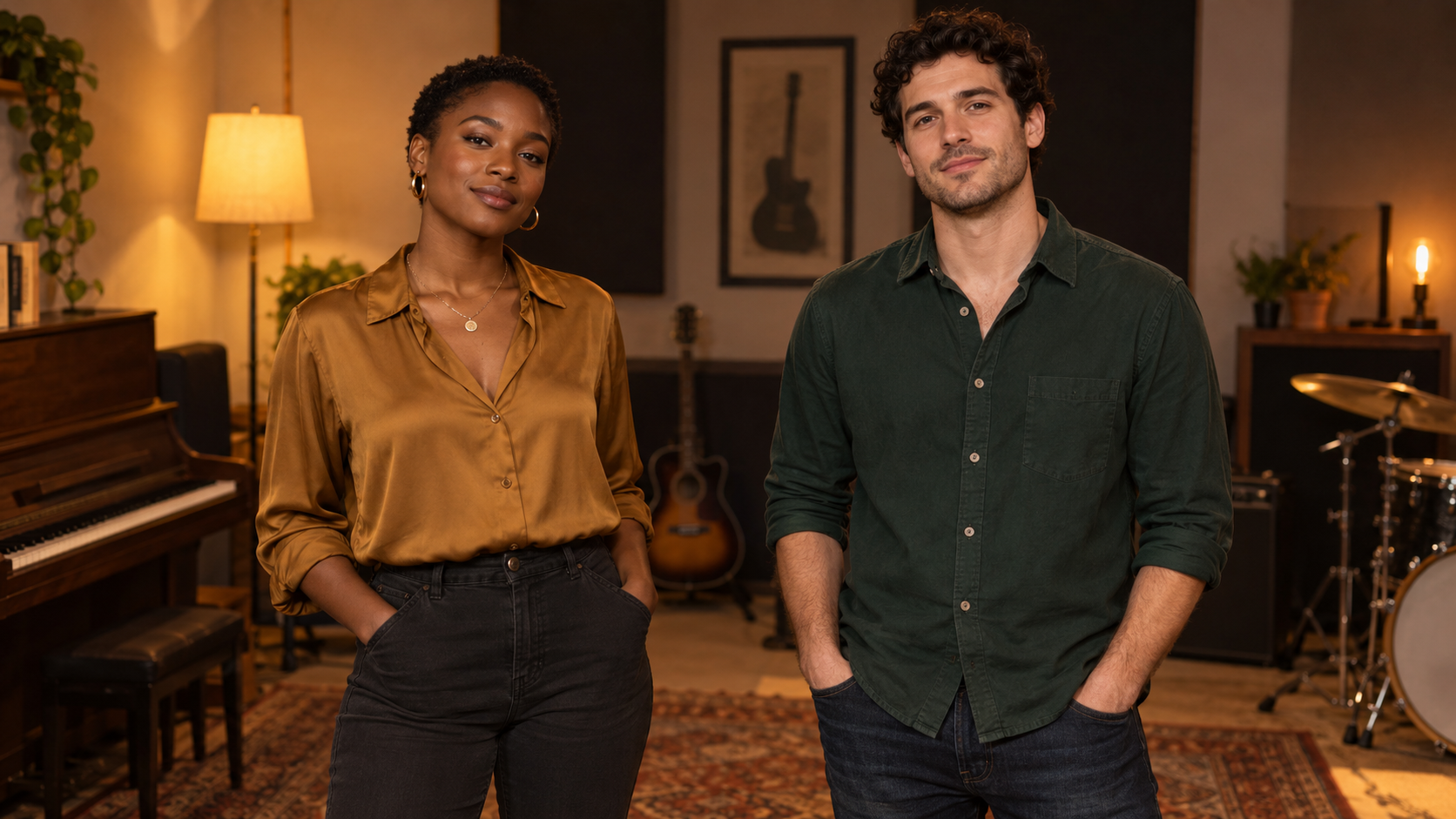
The finished result uses that shared image and the arranged tracks. Watch the handoffs to understand how the two-track layout differs from making a single portrait sing.
If the whole track belongs to one voice, a single singing photo is simpler. Use separate speaking or singing tracks when two visible people must take distinct turns.
Check the singing roles
The final review should answer three questions: Who sings the first line? When does the second singer enter? Do both appear to sing during the shared passage? Keep the source vocal files alongside the timeline so you can compare the generated performance with the intended arrangement. If a role is wrong, correct the track assignment before changing the image.
Frequently asked questions
Can both people sing together?
Yes. Overlap clips across the two singer tracks for the shared phrase or harmony.
Can one person sing alone?
Yes. Leave the other singer's track empty during that section.
Is this the same as making one photo sing?
No. This workflow controls two singers separately inside one source image.