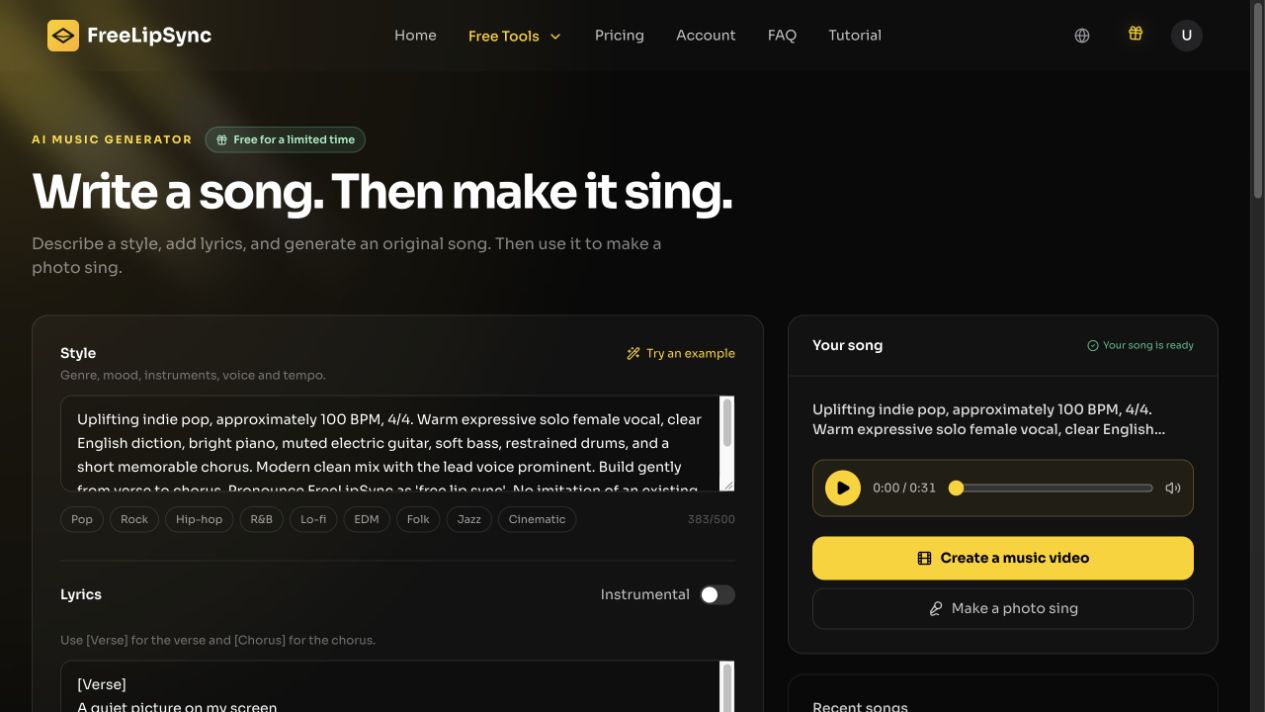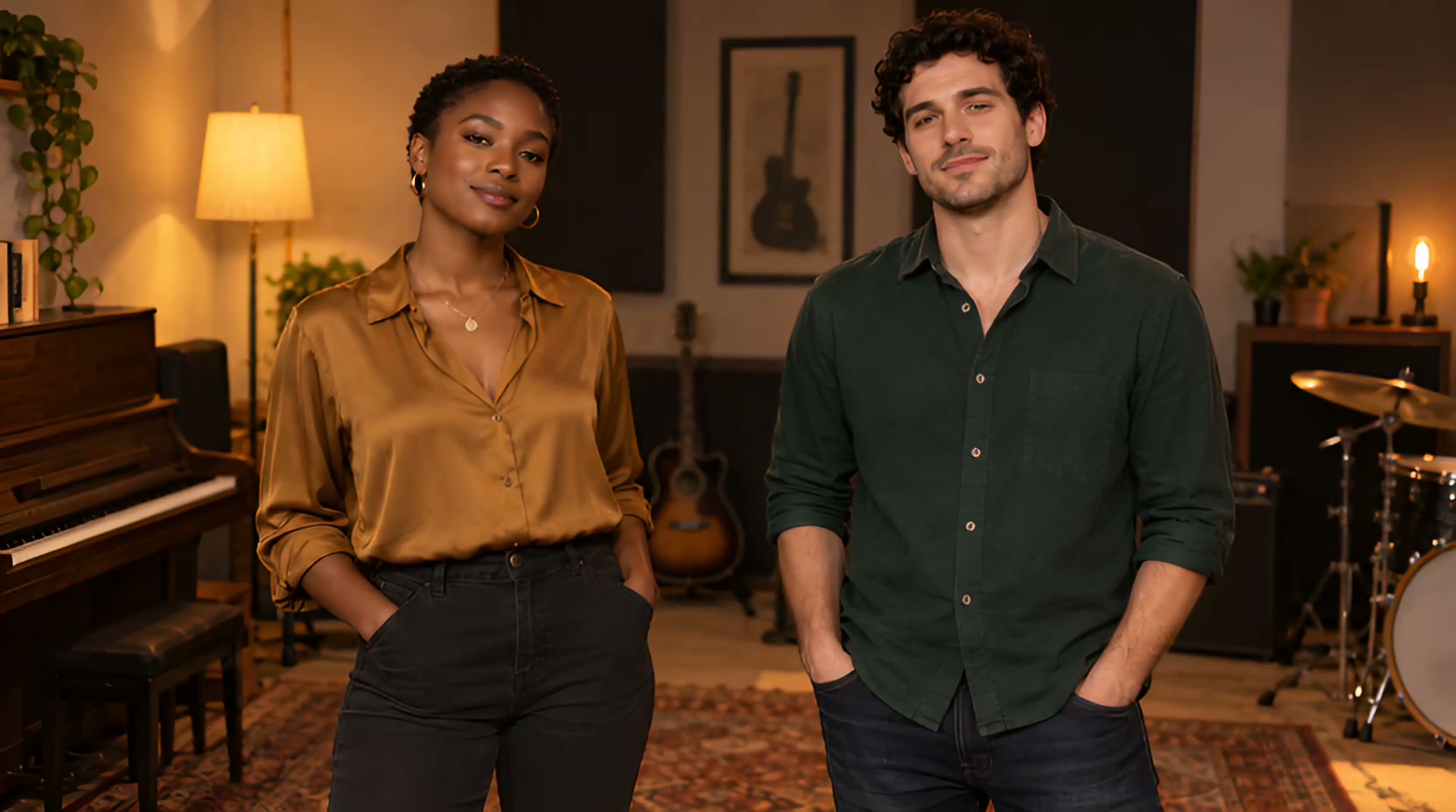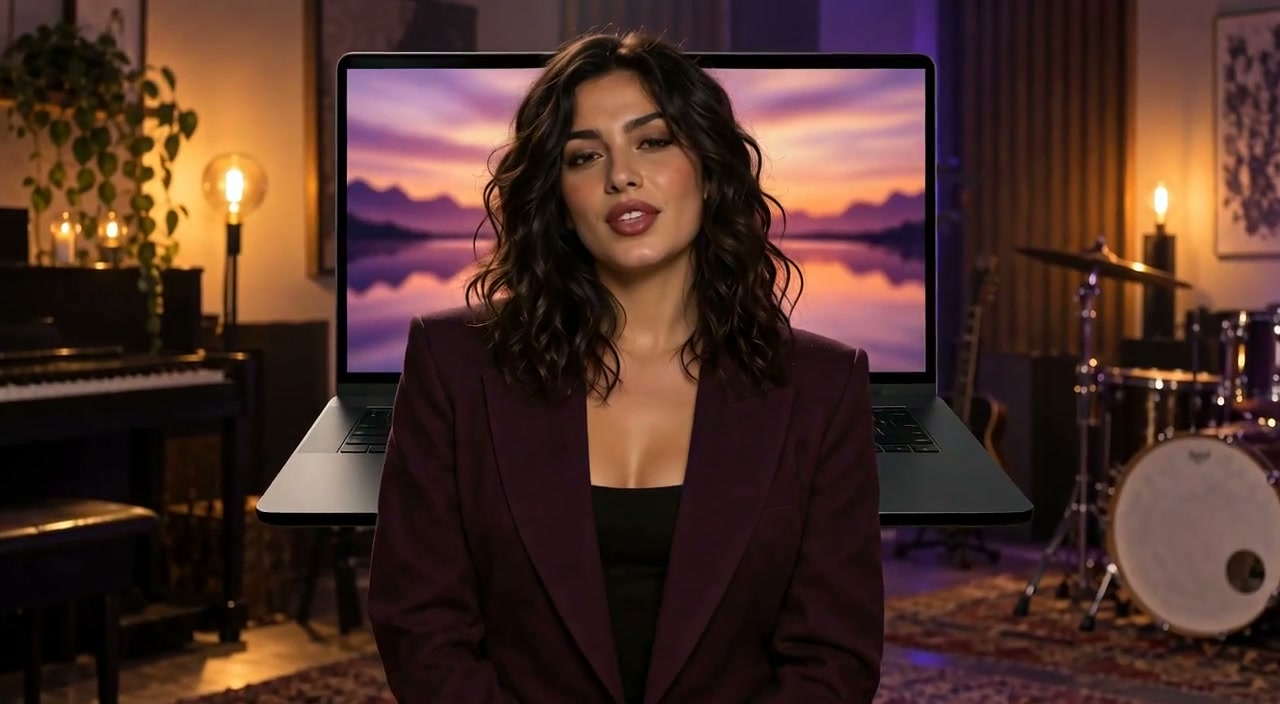
An independent musician can have a finished song long before a finished music video. FreeLipSync's AI Music Video Generator starts with one image and one vocal track, then makes a lip-synced performance with shot changes directed by the music. It is for a produced MV, not simply one still portrait opening and closing its mouth.
Why use one photo and a song?
A release teaser can pair a short excerpt from an original song with the artist's authorized portrait. A virtual character performance can give a consistent face to a fictional singer without filming a band. A social music clip can turn one approved image and one song excerpt into something with visual variation. These scenarios share a constraint: the creator has audio and a visual identity, but not a shot list or filmed footage.
A demo for a new single can use the strongest vocal hook to show how the track and visual identity work together before a larger campaign is ready. A lyric-led character post can give an illustrated performer a voice without pretending that the image is footage of a real event. In either case, the song is the timing source: choose the section you actually want viewers to hear before generating the video. A quiet instrumental intro might be a good music cue, but it cannot demonstrate singing lip sync.
This workflow is distinct from Make Photo Sing, which is better when the intended result is one continuous singing portrait. The MV tool chooses shots automatically; it does not offer manual control over each generated cut.
How to make the video
- Choose the source image. Use an original or licensed image of the singer or character. Check that you have permission to animate the likeness.
- Prepare the vocal song. Select an excerpt with an audible lead vocal, and confirm you can publish both the recording and composition. Instrumental-only audio cannot supply a singing mouth track.
- Upload the image and song. Open the music-video tool, review the selected audio and current input-duration allowance, then generate. You do not need to specify a storyboard or number of shots.
- Review the complete output. Listen for uninterrupted music and watch whether the mouth follows the sung phrases. Check that cuts feel related to the beat and that the performer remains recognizable across shots.
Choose the right music-video workflow
Use this AI music video generator when you have one approved image plus a finished vocal track and want the tool to arrange a multi-shot performance. Use Make Photo Sing when one continuous singing shot fits the song. If you have several specific images that must appear in a fixed sequence, plan them in Multi-Scene Lip Sync instead of expecting automatic music-video cuts to follow a storyboard.
For a promotional excerpt, check the first sung phrase, the chorus entry, and the final cut separately. Those moments determine whether a short clip works as a teaser even when the middle looks good. Keep the original audio and image beside the output so you can compare vocal timing and performer identity, and confirm the rights to use the song and likeness before publishing.
Example: one fictional singer and an original song
This example uses a fictional singer portrait and the supplied approved New Light vocal song. The AI Music Generator tutorial explains the lyric-and-style preparation. Keeping the chosen song file with the video project matters: a later musical revision would no longer be the same input.
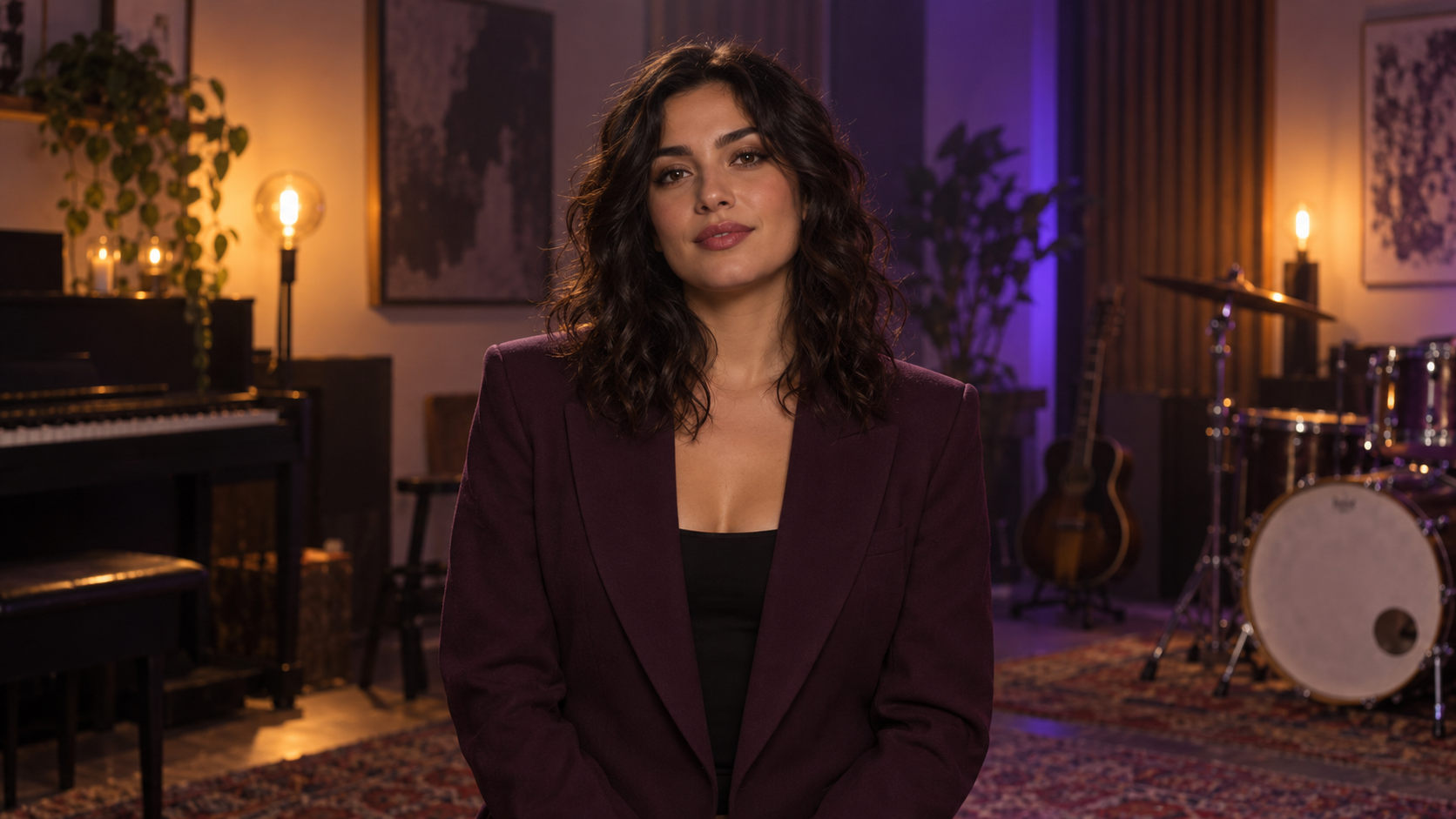
The resulting clip below is the actual generated example. A single portrait supplies visual identity; the vocal track supplies the performance to synchronize.
For a song with multiple singers or planned camera cuts, prepare distinct shots and use a multi-scene storyboard. One photo and one song are the simpler starting point when the goal is a solo teaser.
What the result can and cannot prove
One good output shows what happened with that image and song; it does not prove every genre, face, or duration will behave the same way. The tool arranges shots automatically, so creators should inspect abrupt visual changes and identity drift as well as lip sync. Keep the original song file for an audio comparison. If you need to control every scene image yourself, use Multi-Scene Lip Sync instead.
Frequently asked questions
How is this different from making a photo sing?
This workflow builds a music video with generated shot changes. Make Photo Sing focuses on a single singing-photo performance.
Do I need a prompt or storyboard?
No. Add the image and vocal track; the tool directs the shots automatically. Review the result because you cannot specify each cut.
Will an instrumental track work for singing lip sync?
Not for a singing mouth performance. Choose audio with a clear vocal line.