AI video face swap replaces a face in existing footage using a reference photo. Create a face swap video from an uploaded clip, preview it in your browser, then download or continue with lip sync.
Try free online video face swap
Video Face Swap Example: Before and After
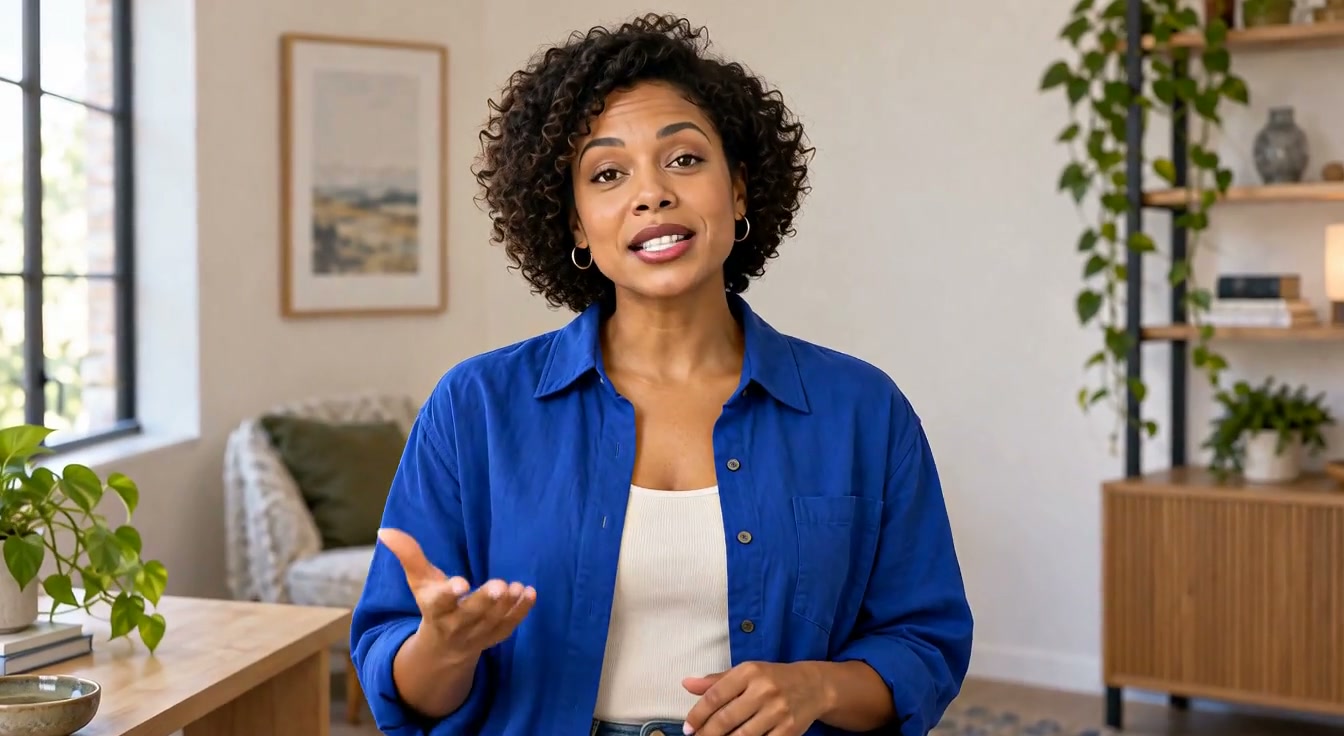
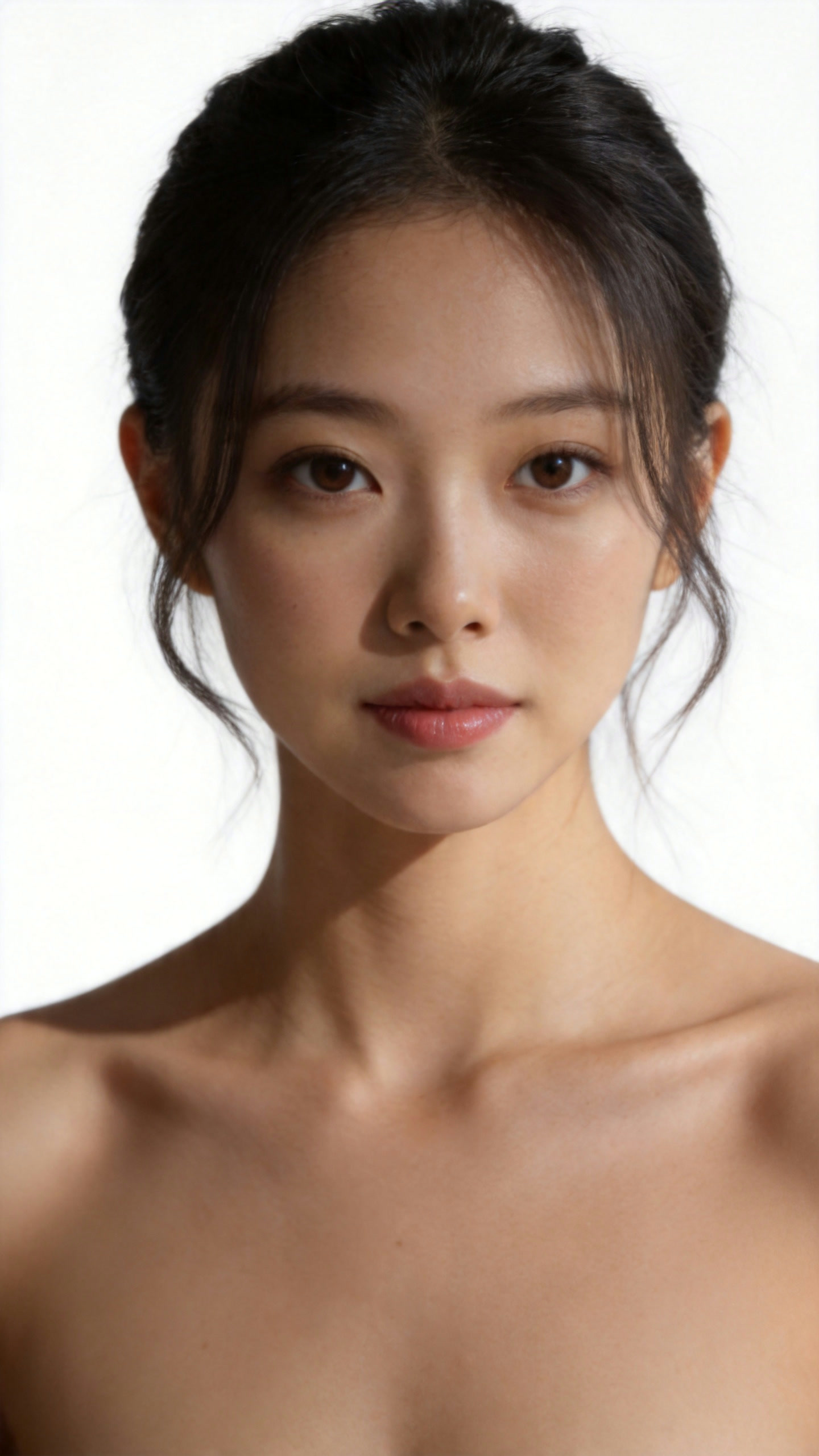
This example starts with the presenter video from our Motion Control tool and the existing sample-image-03 reference portrait. The original clip is about 11.8 seconds long. We used Face Swap to change the face; we did not generate a new performance or record a new voice. Watch the source and result through the glasses removal, hand gesture and camera movement rather than judging only the cover image.
Original video
Reference face photo
Face swap result
Compare the full video: original on the left, face swap on the right
Compare the full video: original on the left, face swap on the right ↗
How to Replace a Face in a Video with a Photo
1. Original video
Choose the existing clip you want to edit. This changes a face in recorded or previously generated footage; it does not create a new video from the reference photo alone. You can start with a silent clip too.
2. Face photo to use
Upload a sharp, front-facing portrait or click a ready-to-use face under the photo field. My uploads reuses saved image assets with an eligible membership. Keep the face visible and avoid extreme angles or heavy obstruction.
3. Generate Free
Choose Generate Free for a short trial or Generate Pro to use original-quality video entitlement. Free generation still uses the Free duration limit when a paid member selects that path. The preview shows the submitted task's progress; selecting a photo alone does not submit anything.
4. Preview, sign in and download without a watermark
Watch the whole result with sound, including turns, glasses and moving hands near the face. You can generate and preview without signing up. Sign in to download the watermark-free low-resolution version, or use the existing Pro Video option for the original generated quality. Original quality describes the actual output; it does not upscale a small source to 4K.
Free Video Face Swap with No Watermark: What Is Included?
FreeLipSync offers free online video face swap for clips up to 20 seconds and 50 MB. No sign-up is required to create and preview a result. Downloads require sign-in: the free download has no watermark at lower resolution. The in-tool preview continues to use the site's preview logo and low-resolution rules.
This separates three decisions that are easy to confuse: whether you can try the tool, whether you have signed in to download, and whether you have original-quality entitlement. A free watermark-free download does not mean unlimited free duration or free original quality. This 11.8-second example shows the workflow; it is not a promise that every input will produce the same quality.
No Credits to Calculate: Pay by Original-Quality Video
The website uses Pro Videos instead of a Face Swap credits balance. Within your plan's limits, one original-quality face swap uses one Pro Video, with no extra website credits or per-second charge as the clip gets longer. A 20-second original and a two-minute original each use one Pro Video when your plan supports those inputs.
Starter shares 20 Pro Videos per 30 days across the existing website tools. Pro includes unlimited Pro Videos during membership, subject to shared task and rate limits. Spending a reward or purchased Pro Video does not raise your account's upload-duration limit. If you later make an original-quality lip sync version, that creates a second work and uses its own entitlement. These pricing rules describe the website.
Best Value for Long Video Face Swaps
Long Video Face Swap: Duration and Upload Limits
Long video face swap is useful when the shot belongs to a longer presenter, course or creative-video workflow. Choose a plan that accepts both your file size and duration before uploading. The limits below apply to the account; the reference face photo is JPG or PNG up to 10 MB.
Choosing free generation keeps the 20-second Free input limit. Original-quality entitlement and long-video access are separate: a Free account with a Pro Video reward still has the Free input limit. Longer tasks can take longer to process, so inspect a short representative clip first, especially if the full video includes side views or occlusion. This example is a short clip, not a demonstration of a 30-minute render.
| Plan | Maximum video duration | Maximum video upload |
|---|---|---|
| Free | 20 s | 50 MB |
| Starter | 3 min | 300 MB |
| Pro | 30 min | 500 MB |
Choose the Right Photo and Video for Face Swap
One clear, visible face
Use footage with one clearly visible face and a sharp, front-facing portrait. Good lighting and less obstruction make the reference easier to use.
Upload a photo or choose a face
Use a JPG or PNG photo up to 10 MB, choose a ready-to-use face below the upload area, or select a saved image from My uploads with an eligible membership.
MP4, MOV or WebM video
Upload an existing video within your plan’s size and duration limits. Silent videos are supported too. Check the preview when the face turns or moves quickly.
Check the Face, Glasses, Motion and Original Audio
Use footage with one clearly visible face. In this example, the face changes while the hair, jacket, background and glasses remain part of the original shot. The source voice is retained; Face Swap does not rewrite speech. Results can vary when the face turns, a hand crosses it, or glasses cover the eyes, so replay these moments at normal speed.
The generated example is 736 × 1344 at 24 fps, about 11.8 seconds long. The output audio was re-encoded, so retaining the voice does not mean the original file, sample rate or container duration is byte-for-byte identical. There is no per-person mapping control for multiple faces, and this example does not establish 4K output or perfect results at every angle.
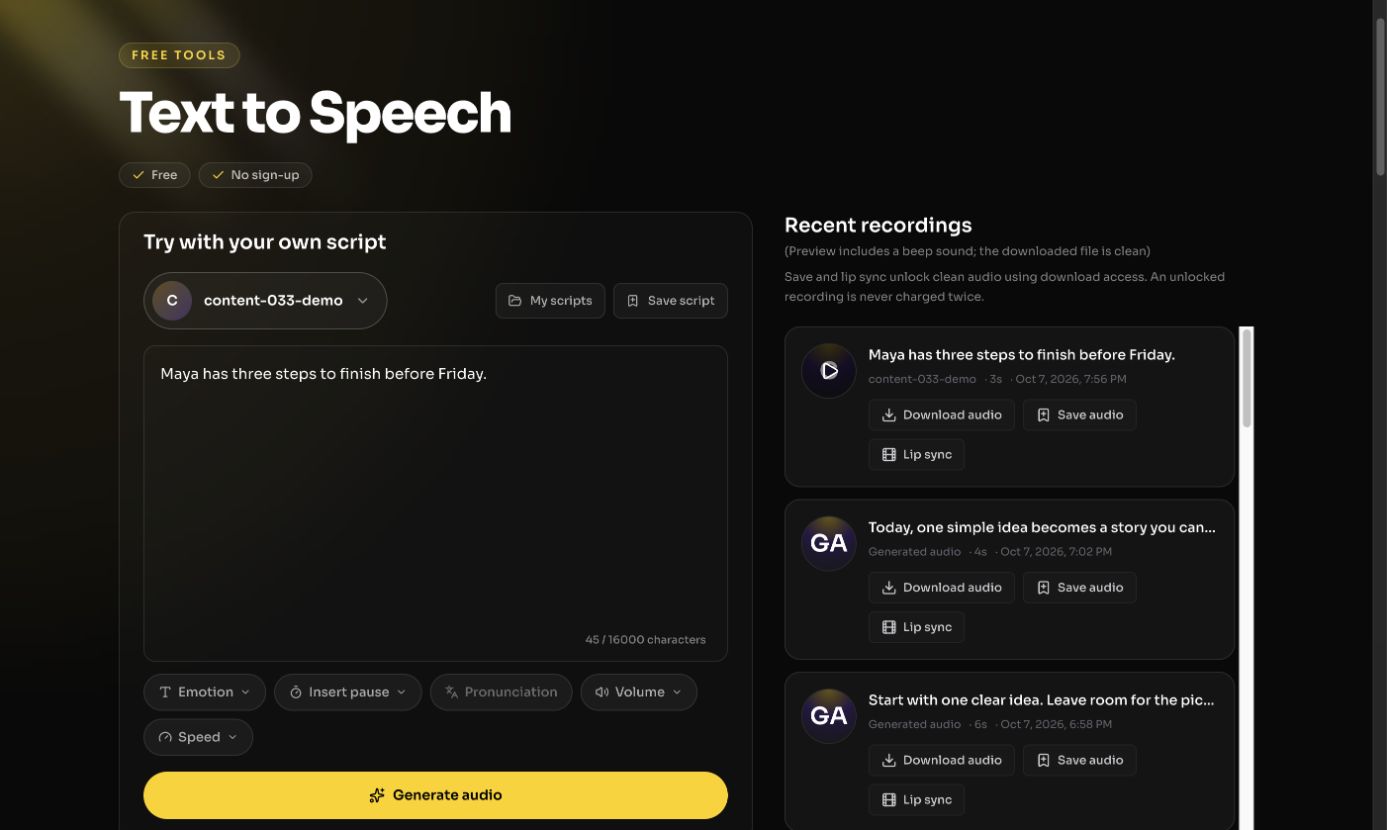
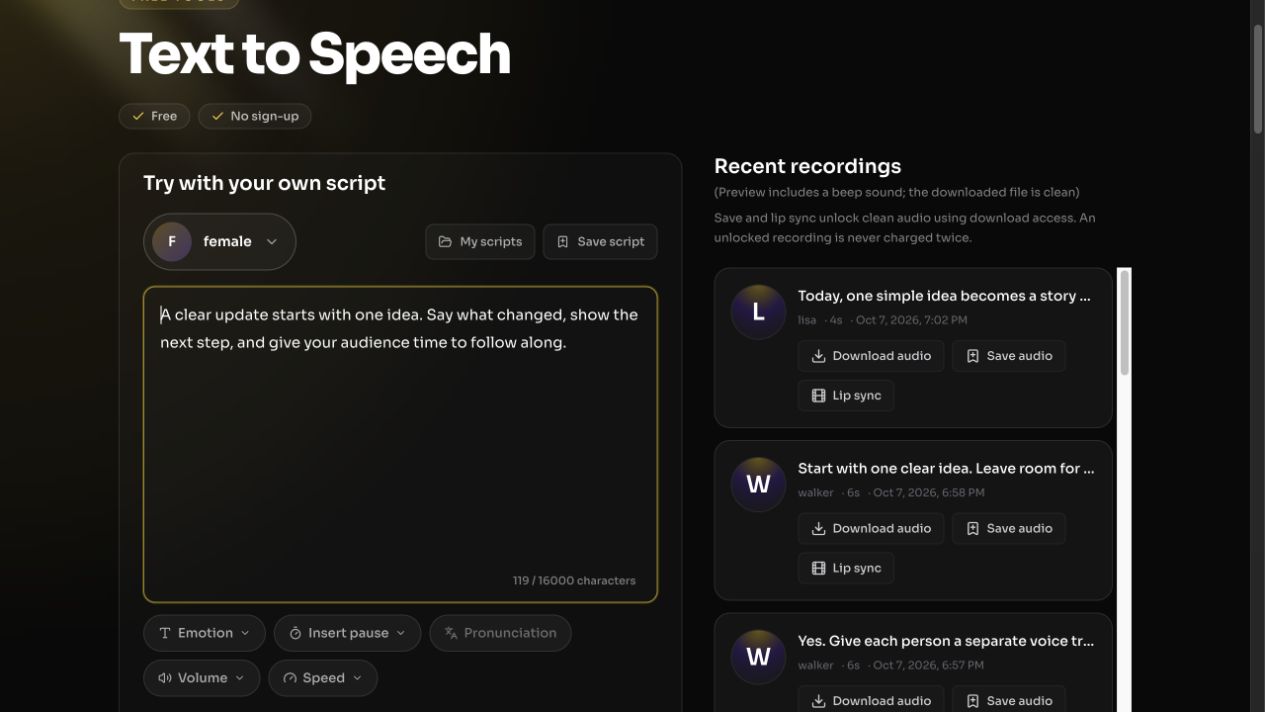
After Face Swap: Add New Dialogue with Lip Sync
Bring your result into an audio or text lip-sync draft. Nothing generates automatically. Face swap and lip sync are separate works; each original-quality generation uses its own Pro Video entitlement.
Audio to Video Lip Sync — Give an existing video a new audio performance.
Text to Video Lip Sync — Write a new line and sync the video to generated speech.
AI Video Dubbing — Explore another tool for updating speech in existing footage.
Video Face Swap FAQ
What is AI video face swap?
AI video face swap changes a face in an existing video using a face from a reference photo. You provide the clip and portrait; the result is a new video.
Can I try video face swap free online?
Yes. The free video face swap option supports clips up to 20 seconds. Generate without signing up, then sign in for a watermark-free download at lower resolution.
How do I replace a face in a video with a photo?
Upload the original video, choose a clear face photo and generate. You can also choose a supplied portrait or, with a qualifying membership, a saved photo from My uploads.
Do I need to sign up to download a face swap video without a watermark?
You can create and preview a result without signing up. Downloads require sign-in. Free downloads have no watermark at lower resolution; original quality requires Pro Video entitlement.
How long can a video face swap be?
Free generation supports up to 20 seconds. Starter Pro generation supports up to 3 minutes and Pro up to 30 minutes, within upload limits. Choosing Generate Free always uses the Free duration limit.
Which video and face photo formats are supported?
Use MP4, MOV or WebM for the source video and JPG or PNG for the face photo. The photo limit is 10 MB; video upload limits follow your account plan.
Does video face swap keep the original audio?
Face replacement keeps the source audio. To make the person say something new, open the result in audio-to-video or text-to-video lip sync and create a separate work.
Can I swap multiple faces or use side-view footage?
This tool is designed around one clear face and one reference portrait. It has no multi-face mapping controls. Strong side views, obstructions and fast motion can affect the result; review the preview.
Last updated: