A podcast clip often has strong audio but no usable camera recording. With one approved image showing both hosts and separate dialogue clips, the AI Podcast Video Generator can create a two-host lip-synced scene. The goal is to make an existing exchange easier to watch while preserving which person owns each line.
Why make a two-host podcast clip this way?
A remote interview may be recorded as audio without matching camera footage. A fictional podcast may use illustrated characters whose voices and identities must stay distinct. A short episode promotion may need only one memorable question and answer rather than a full filmed session. In each case, the source material is the conversation; the image supplies a visual stage for it.
This page focuses on preparing a podcast excerpt: choosing a coherent exchange, pacing the host and guest, and leaving room for responses. The general two-person dialogue tutorial explains the underlying two-track editor for broader sketches, training scenes, and character conversations.
How to build the excerpt
- Select a self-contained moment. Choose a question and answer that make sense without the rest of the episode. Keep the exact approved words and audio for each host.
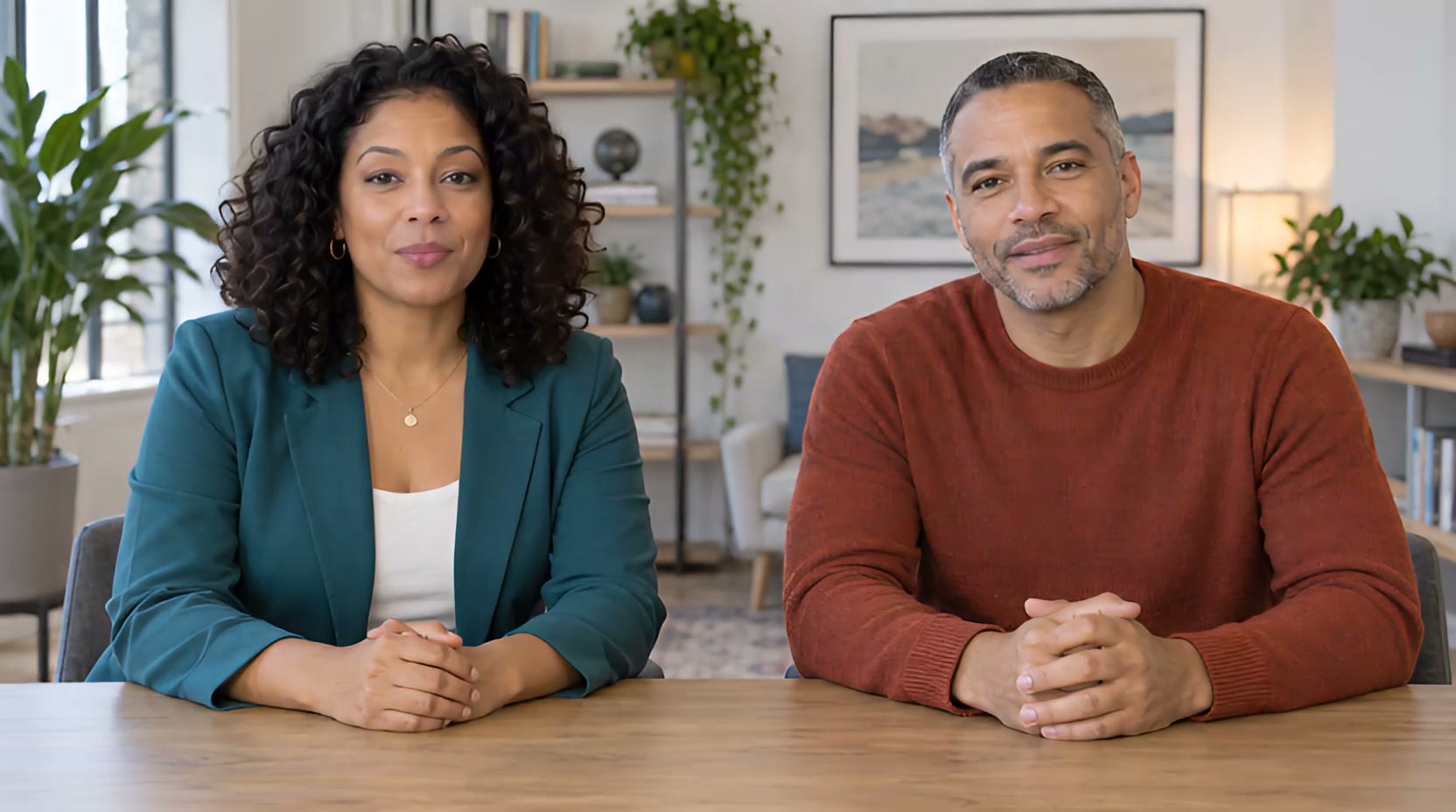
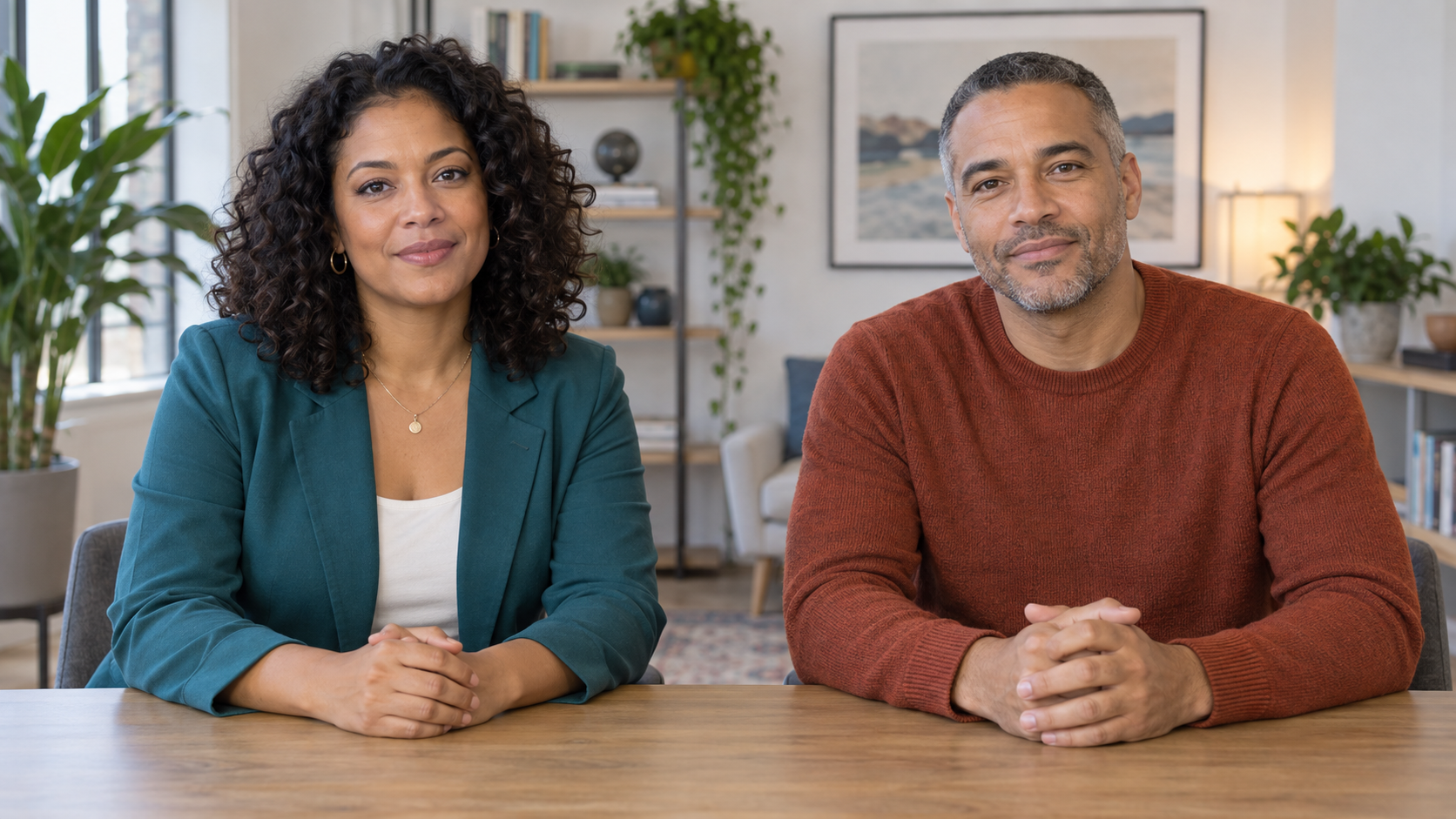
- Choose the host image. Use a photo or illustration with both faces visible and permission to animate each likeness. Confirm the left and right speaker mapping.
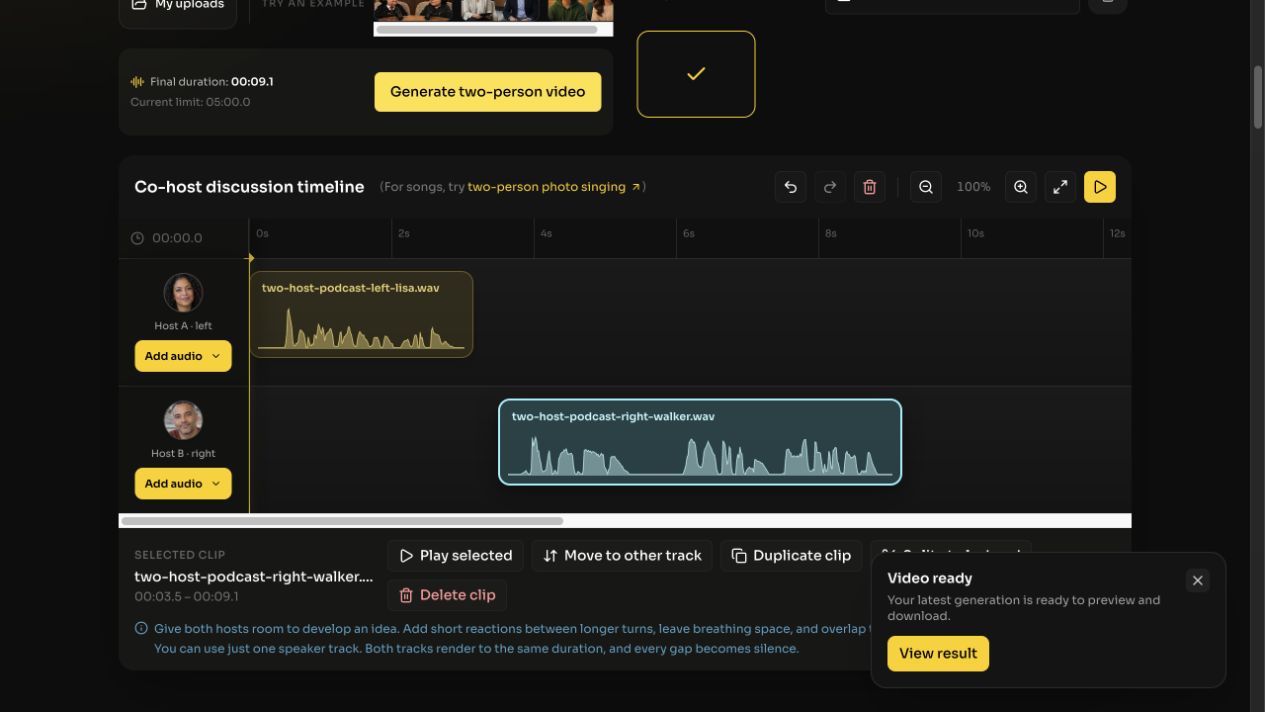
- Separate and place the voices. Put host lines on one track and guest lines on the other. Leave a small gap where a response should breathe; overlap only where the recording genuinely contains simultaneous speech.
- Generate and inspect. Listen to the entire result and verify that every speaking turn belongs to the correct face. Check the transition into and out of the excerpt before treating it as a publishable promo.
Example: a question and answer from one image
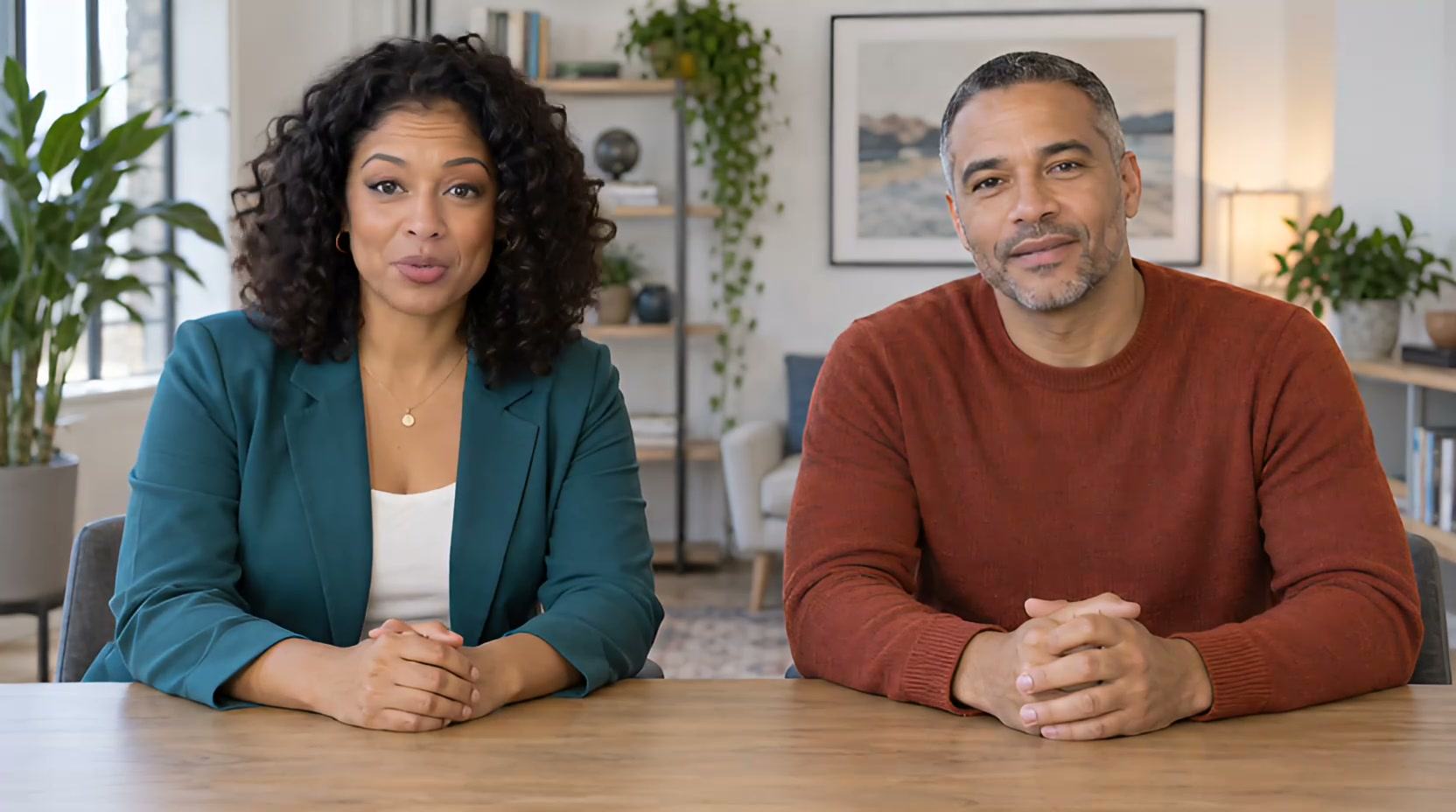
The source image shows the left host and right guest together. The left host asks, “What makes a short video voiceover easy to follow?” The right guest replies, “Start with one clear idea. Leave room for the picture, then listen to the whole take.” Each line was placed on the corresponding speaker's track, with a short handoff between them.
The editor capture shows the separate speaking turns. The finished video is a single shared two-person scene; it does not create extra close-up camera angles.
If your podcast needs shot changes as the speakers trade ideas, use the multi-scene tutorial to plan and supply the additional images.
Keep the promise narrow
This tool animates two people in one image. It does not automatically turn an audio episode into a full multicamera program or generate new solo camera angles. If the final edit needs separate host close-ups, make or source those shots independently. Here, success means that one short exchange is easy to follow and the right host appears to speak at the right time.
Frequently asked questions
Do I need camera footage of the hosts?
No. You need one permitted two-person image and the prepared voice clips.
Can I upload one mixed recording?
For clear speaker assignment, prepare separate clips for the host and guest and place them on the matching tracks.
Does the result include solo shots?
No. This workflow creates the two-person scene. A larger podcast edit with solo shots is a separate step.